
Booking a major trip often leaves you with dozens of open browser tabs: an airline confirmation page displaying flight segments and seat assignments, a boutique hotel receipt with specific check-in instructions, and an activity voucher with a timed entry window. When reservations live in separate browser windows and scattered email threads, assembling a coherent itinerary becomes frustrating and error-prone.
Suitcase2Go organizes trips with flights, stays, and daily plans in one centralized timeline. To help streamline the intake of these reservations as you complete them, the official companion extension allows you to send active booking details directly to your trip dashboard from your desktop browser.
Understanding how the tool functions, what data it processes, and how to verify the parsed results ensures your itinerary remains accurate, organized, and ready for your departure day.
How the Suitcase2Go Extension Works
Before initiating the capture workflow, it helps to understand what happens behind the scenes. The browser extension is designed to run in Google Chrome and compatible desktop Chromium environments, available directly via the Chrome Web Store.
When activated on an open browser tab, the extension performs two discrete capture actions:
- Submits Active-Page Text: It reads and submits the text rendered on the active confirmation web page to the parsing engine.
- Attempts a Visible-Page Screenshot: It attempts to capture a snapshot of the visible browser viewport as a visual reference for your records.
Because web layouts, booking engines, and receipt formats vary widely across airlines, hotels, and rail operators, automated parsing can occasionally misplace a time zone, truncate a confirmation code, or miss a line item. Users must always check the resulting entries against their primary booking confirmation. The extension is an intake assistant, not a substitute for personal verification.
It is also worth noting what the tool does not do: it does not perform universal automated file imports of published travel articles or external itinerary spreadsheets, nor does it guarantee universal provider support across every password-protected portal. Adopting a structured intake routine prevents missing reservations later.
Step-by-Step Guide: Capturing a Booking Confirmation
Following a deliberate capture routine every time you complete a booking ensures all dates, confirmation references, and location details land in the right trip workspace.
Step 1: Set Up and Connect Your Account
Before capturing reservations, ensure the extension is installed and properly linked to your account:
- Install the extension from the official Chrome Web Store listing.
- Pin the extension icon to your Chrome toolbar for easy access during booking sessions.
- Open the extension pop-up and connect your account. This establishes the secure link between your browser session and your central timeline.
If you have not yet set up a profile, visit Suitcase2Go to explore the platform features and complete your initial account registration.
Step 2: Establish Your Target Trip
Confirmations must be routed into a specific destination container. If you attempt to capture a reservation without choosing a destination, the entry cannot be sequenced properly.
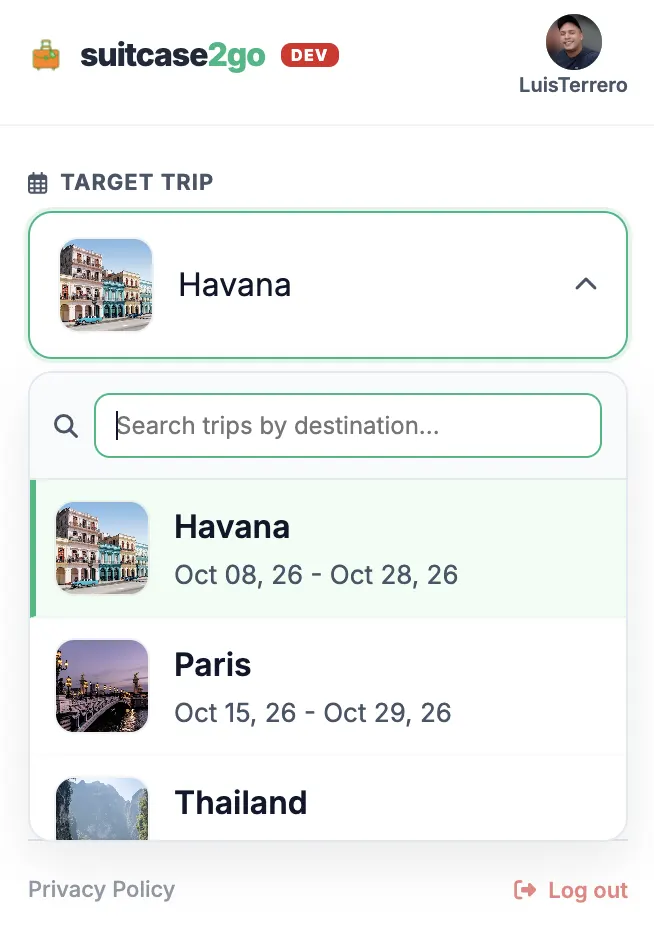
- Open the extension window while in your browser.
- In the dropdown selector, choose your Target Trip (for example, "Autumn in Kyoto" or "Pacific Northwest Road Trip").
- If you have not created the trip yet in your main dashboard, create the container first so that incoming flights, accommodations, and daily activities have an assigned timeline.
Step 3: Navigate to the Final Confirmation Screen
The extension processes the active web page currently displayed in your browser tab. To ensure the highest capture accuracy, always trigger the extension on the definitive post-purchase summary screen rather than intermediate checkout pages.
- Ideal screens: The final "Thank You for Your Order" screen, the web view of your airline itinerary displaying flight numbers and departure times, or the hotel booking receipt showing check-in dates and cancellation deadlines.
- Screens to avoid: Search result pages, payment authorization loading screens, or checkout pages where taxes, baggage fees, and final confirmation numbers have not yet generated.
- Display tip: Ensure the key details—such as confirmation numbers, dates, times, and property addresses—are expanded and visible in the browser viewport. If key details are hidden inside collapsed accordion menus, expand them before running the capture.
Step 4: Trigger the Capture
With the confirmation page active and visible on your screen:
- Click the extension icon in your toolbar.
- Confirm that the Target Trip reflects the intended journey.
- Select Add to trip.
The tool will submit the active-page text and attempt a visible-page screenshot, sending the raw data to your timeline for categorization into flights, stays, or activities.
Step 5: Perform the Verification Audit
Automated ingestion is only the first half of the process. Once the extension completes its transmission, open your dashboard to verify the parsed entry against your official receipt:
- Confirmation / PNR Code: Confirm every letter and digit matches the original confirmation number.
- Dates and Time Zones: Verify departure and arrival times, paying special attention to overnight segments and time zone shifts.
- Terminal and Gate Details: Note that terminal assignments on booking confirmations are provisional; check whether the parsed entry captured the correct airport code (such as NRT vs. HND).
- Check-In and Check-Out Times: Ensure hotel check-in policies and dates did not shift during parsing.
If any field was omitted or interpreted incorrectly due to unique site formatting, edit the entry manually in your trip timeline while the original booking tab is still open in front of you.
Worked Example: A Multi-Stage Booking Session
To see how this workflow operates in practice, consider planning a week-long journey that involves an outbound flight, a city hotel, and a pre-booked museum ticket.
+-----------------------------------------------------------------------------------------+
|                                 CAPTURE WORKFLOW EXAMPLE                                |
+---------------------+-------------------------------+-----------------------------------+
| Stage               | Page State                    | Required Action                   |
+---------------------+-------------------------------+-----------------------------------+
| 1. Flight Booking   | Airline "Booking Confirmed"   | Select Target Trip -> Add to trip |
|                     | Screen (PNR & segments shown) | Check: Airport codes & dates      |
+---------------------+-------------------------------+-----------------------------------+
| 2. Hotel Stay       | Lodging confirmation screen   | Select Target Trip -> Add to trip |
|                     | (Address & dates shown)       | Check: Check-in/out & room type   |
+---------------------+-------------------------------+-----------------------------------+
| 3. Timed Activity   | Tour voucher summary page     | Select Target Trip -> Add to trip |
|                     | (Meeting point & start time)  | Check: Time window & arrival note |
+---------------------+-------------------------------+-----------------------------------+
Stage 1: The Flight
You book a multi-city flight on an airline portal. Upon reaching the final receipt page showing the six-character record locator, you open the extension, verify the Target Trip, and select Add to trip. You then switch to your dashboard to confirm that the outbound flight, layover buffer, and arrival times align precisely with the airline receipt.
Stage 2: The Accommodation
Next, you reserve a hotel on an accommodation portal. Once the confirmation screen loads with the check-in date, check-out date, and property street address, you trigger the extension once more. Because hotel checkout pages often place check-in policies and cancellation rules in secondary tabs, you expand those sections first so the submitted page text contains the full context.
Stage 3: The Daily Activity
Finally, you secure a timed entry pass for an art gallery or historical landmark. Because Suitcase2Go organizes daily plans alongside flights and stays, capturing this voucher immediately situates your activity within that specific afternoon block, preventing accidental double-booking.
Troubleshooting Common Capture Scenarios
While the extension simplifies gathering reservations across multiple travel vendors, specific web configurations require minor adjustments.
Dynamic Portals and Protected Sessions
Certain travel booking engines display confirmation details inside dynamic single-page applications or session-restricted frames. If a site relies heavily on asynchronous scripts that do not expose text cleanly in the standard page structure, the extension may capture incomplete text. If this occurs:
- Keep the active tab focused and ensure all confirmation elements have fully loaded.
- Scroll through the page so all relevant details appear in the visible window before selecting Add to trip.
- If the page fails to submit or omits essential flight segments, enter the reservation manually into your trip timeline using the primary confirmation email as your reference.
PDF Confirmations and Downloaded Receipts
Many travel providers present receipts as downloadable PDF files rather than HTML web pages. The desktop browser extension is designed to evaluate active web pages in the browser viewport. When viewing an embedded PDF reader tab, active-page text extraction may not behave identically to a standard website DOM. For PDF receipts, open the booking management page on the provider's standard web portal, or manually populate your timeline fields.
Itinerary Articles and External Guides
Travelers often browse destination guides, blog itineraries, and regional road trip ideas while planning. Note that published itinerary articles, web blogs, and editorial guides cannot be imported through the extension into your structured dashboard. The tool is purpose-built to parse transactional travel confirmations (flights, lodging, car rentals, and timed reservations), not narrative reading material. Use curated articles to inform your personal plans, then record specific activities manually in your daily schedule.
Building a Resilient Trip Timeline
Capturing reservations is only the starting point of thorough trip preparation. To maintain an actionable itinerary as your departure approaches, incorporate these practical habits into your planning workflow:
- Maintain Primary Reference Records: The extension captures page text and visual snapshots to help organize your schedule, but airlines and hotels occasionally adjust flight schedules, terminal gates, and check-in policies weeks after booking. Always retain your direct booking confirmation emails or provider account access for formal changes, rebooking, or refund requests.
- Audit Multi-Segment Layovers: Automated capture handles individual flight segments, but calculating realistic connection buffers remains your responsibility. Whenever the extension logs connecting flights, check minimum connection times and terminal changes independently, especially when transferring between international and domestic terminals.
- Cluster Your Daily Plans by Geography: Once your core flights and stays are locked into your dashboard, group your daily activities to minimize transit time. Avoid scheduling morning and afternoon activities on opposite sides of a major metropolitan area.
- Keep Offline Backups: Before leaving home, review your complete dashboard to ensure all addresses, reservation numbers, and arrival times are accounted for, providing peace of mind if you experience limited connectivity on arrival.
To discover how the platform brings flights, stays, and daily plans together in one unified workspace, visit Suitcase2Go and explore the core planning tools today.