
Arriving in a foreign city only to watch a mapping app spin endlessly on a crowded street corner or inside a subway station is an all-too-common travel frustration. While roaming eSIMs and local data passes are widely available, mobile networks frequently drop out in narrow historic alleys, dense stone centers, transit tunnels, and rural vantage points.
Many travelers assume that curating a detailed trip on their laptop and saving an offline area on their phone guarantees smooth, on-the-ground navigation. Unfortunately, popular mapping ecosystems handle custom points of interest and offline navigation very differently. Understanding these constraints—and setting up the right two-tier navigation stack before departing—ensures you can navigate confidently between neighborhood sights without touching an active cellular connection.

The Common Offline Mapping Pitfalls
Before building an offline map, it helps to understand why the default "Google My Maps + Mobile App" setup often breaks down in the field:
- Google My Maps Layers Require Data: While desktop planners love building custom pins and color-coded layers in Google My Maps, those custom layers do not automatically render or cache inside the standard Google Maps mobile app when operating entirely offline.
- Google Maps Offline Has No Walking Directions: According to official Google Maps Help documentation, offline downloaded areas only provide driving routes. Transit, cycling, and walking turn-by-turn directions are completely disabled when you lack an internet connection. If you are exploring on foot, you will only see your GPS blue dot against a static map image without route guidance.
- Map Expirations and Size Bloat: High-resolution commercial map caches can occupy gigabytes of phone storage and usually expire within 30 to 90 days unless refreshed over Wi-Fi.
To bypass these restrictions, travelers generally follow one of two reliable workflows: the universal cross-platform stack using desktop export into an OpenStreetMap engine, or the integrated Apple Maps offline stack on iOS.
Worked Scenario: A 3-Day Walking Tour of Rome
To see how this works in practice, consider a sample three-day sightseeing plan for Rome (fictional sample planning data):

- Day 1 (Ancient Center): Colosseum, Roman Forum, Monti neighborhood espresso stop, and Trajan’s Market.
- Day 2 (Historic Core): Pantheon, Piazza Navona, Campo de' Fiori bakeries, and Sant'Ignazio.
- Day 3 (Trastevere & River): Santa Maria in Trastevere, Janiculum Hill viewpoint, and evening trattorias.
Below are the step-by-step workflows to turn this daily structure into reliable offline walking tools.
Workflow 1: The Universal Cross-Platform Stack (Google My Maps to Organic Maps)
This method is ideal for anyone who prefers the visual freedom of planning on a large desktop monitor and needs full, turn-by-turn pedestrian routing on either iOS or Android without cellular connectivity.

Step 1: Curate Daily Layers on Desktop
- Go to Google My Maps on a desktop browser and create a new map (e.g., Rome Walking Sightseeing).
- Create distinct layers corresponding to your daily flow: Day 1 - Ancient Center, Day 2 - Historic Core, and Day 3 - Trastevere.
- Search and add your key attractions, viewpoints, and meal stops to each layer. Customize pin colors (e.g., Red for must-see monuments, Blue for cafes, Green for scenic overlooks) to make on-screen identification fast.
- Add brief reminders in the location description box, such as ticket entry windows or reservation times.
Step 2: Export Layers as KML or KMZ
- Next to your map title in the left panel, click the three-dot menu icon.
- Select Export to KML/KMZ, following the official instructions from Google My Maps Help.
- You can choose to export the entire map or individual layers. For multi-day trips, exporting the entire map as a single
.kmzfile keeps all layers organized in one place. - Send the exported
.kmzfile to your mobile device via AirDrop, Google Drive, iCloud, or as an email attachment.
Step 3: Import into Organic Maps
- Install Organic Maps (available free for iOS and Android), an open-source navigation engine powered by OpenStreetMap.
- On your phone, tap the received
.kmzfile and select Open in Organic Maps (or use the internal bookmark manager as documented by Organic Maps Help). - The app will immediately import your custom pins, preserving the group categories, pin titles, and personal notes.
Step 4: Download the Base Region Offline
- When you zoom into your destination region inside Organic Maps, the app will prompt you to download the offline country or provincial map package (for our scenario, the Lazio/Rome regional map).
- Download the package over home or hotel Wi-Fi before heading out. OpenStreetMap packages are vector-based, typically consuming only 50 to 150 MB of storage.
Step 5: Test Pedestrian Navigation in Airplane Mode
- Put your phone into Airplane Mode to simulate zero mobile service.
- Open Organic Maps, tap any of your imported custom pins, and tap the pedestrian icon (Route To).
- Confirm that the application calculates a walking route through streets, pedestrian squares, and alleyways with full turn-by-turn prompts.
Workflow 2: The Native iOS Stack (Apple Maps Custom Guides)
If you use an iPhone and do not want to manage file exports or third-party apps, modern versions of Apple Maps offer built-in offline pedestrian navigation and organized lists.
Step 1: Pre-Download Your City Map
- Open Apple Maps while connected to Wi-Fi.
- Tap your profile icon or user initials next to the search bar and select Offline Maps.
- Tap Download New Map, search for your destination city (e.g., Rome), and adjust the rectangular boundary frame to include both the city center and outlying airports or train stations.
- Tap Download, as outlined in Apple Support's guide to downloading offline maps.
- Verify that Automatic Updates is toggled on and check that your map download status shows complete.
Step 2: Organize Places into Custom Guides
- Scroll down the main search drawer in Apple Maps to the Guides section and select New Guide.
- Create a guide for each day (e.g., Rome Day 1: Historic Core), per the workflow described in Apple Support's custom guides overview.
- Search for each sight, tap the More (...) button on its place card, and choose Add to Guide.
- You can reorder locations or attach specific planning notes directly to each stop.
Step 3: Navigate Completely Offline
Unlike Google Maps, Apple Maps supports offline turn-by-turn walking, cycling, and driving directions within downloaded areas. When you walk from the Pantheon to Piazza Navona without an active data connection, the system will calculate a walking path, estimate your time of arrival, and update your position seamlessly.
Note: Offline Apple Maps guides cannot be exported to .kml or .gpx files for use on non-Apple devices, meaning travel companions using Android will not be able to open that collection natively.
Offline Mapping Platform Comparison
| Capability | Google Maps Offline | Apple Maps Offline | Organic Maps (OSM) |
|---|---|---|---|
| Turn-by-Turn Walking | ❌ No (Driving only) | ✅ Yes | ✅ Yes |
| Turn-by-Turn Driving | ✅ Yes | ✅ Yes | ✅ Yes |
Custom .kml/.kmz Import |
❌ No direct mobile import | ❌ No | ✅ Yes |
| Desktop Planning Sync | ✅ Via Google Account (requires data) | ✅ Via Mac Apple Maps (iCloud) | ⚠️ Manual file import |
| Storage Footprint | Moderate (150–500 MB) | Moderate to Heavy (200 MB–1 GB) | Ultra-light (30–150 MB) |
| Cross-Platform Compatibility | iOS & Android | iOS / Apple Watch only | iOS & Android |
Linking Your Navigation with Daily Logistics
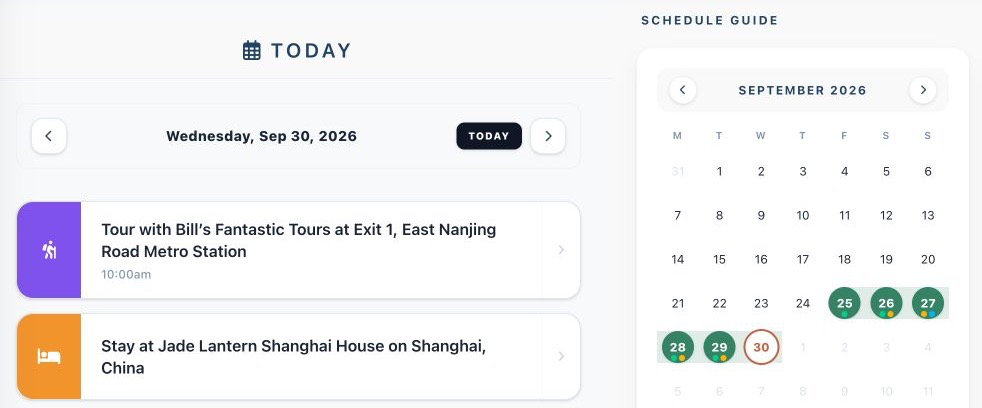
A custom map shows you where to turn, but it does not tell you your timed museum entry slots, lodging check-in rules, or flight terminal updates. Navigating smoothly requires pairing spatial tools with structured daily plans.
You can keep your overarching itinerary, flight bookings, and stay details consolidated with Suitcase2Go. Having your confirmed schedule, booking attachments, and daily agendas accessible in one structured place allows you to glance at your target reservation time, copy the street address into your offline map, and begin walking with zero friction.
Pre-Departure Verification Checklist
Before boarding your flight or stepping away from hotel Wi-Fi, run through this five-minute technical audit:
- Switch on Airplane Mode: Turn off Wi-Fi and Cellular Data entirely to test your setup under true zero-reception conditions.
- Confirm Search Works Locally: Search for an address or sight name inside your downloaded map boundary to verify that local indexing functions offline.
- Route a Walking Trip: Select a destination across town and generate a walking route. If the app displays an error stating that directions require an active network connection, you are using an app or region that does not support offline pedestrian routing.
- Inspect Pin Labels and Notes: Tap two or three custom pins to confirm that personal notes (such as opening hours or door entry codes) transferred during the import.
- Check Battery Settings: Offline navigation relies heavily on the phone's internal GPS chip, which draws significant battery power. Carry a compact external power bank and toggle low-power mode if your daily walking schedule extends beyond six hours.