
Booking an international trip or a multi-city itinerary rarely results in a single, tidy confirmation. A traveler might book an outbound leg directly through one carrier, reserve an inter-island connection with a regional carrier, and secure the return using credit card rewards or an online travel agency. Within hours, vital travel records—such as 13-digit e-ticket receipts, passenger name records (PNRs), and schedule notices—become scattered across email archives, browser downloads, and carrier portals.
Fumbling through an inbox for a booking reference while standing at a check-in desk or an immigration checkpoint with spotty roaming data is a recipe for stress. To travel smoothly, you need a disciplined, repeatable process for collecting, naming, and centralizing flight confirmation PDFs so they remain instantly accessible even when your phone is in airplane mode.
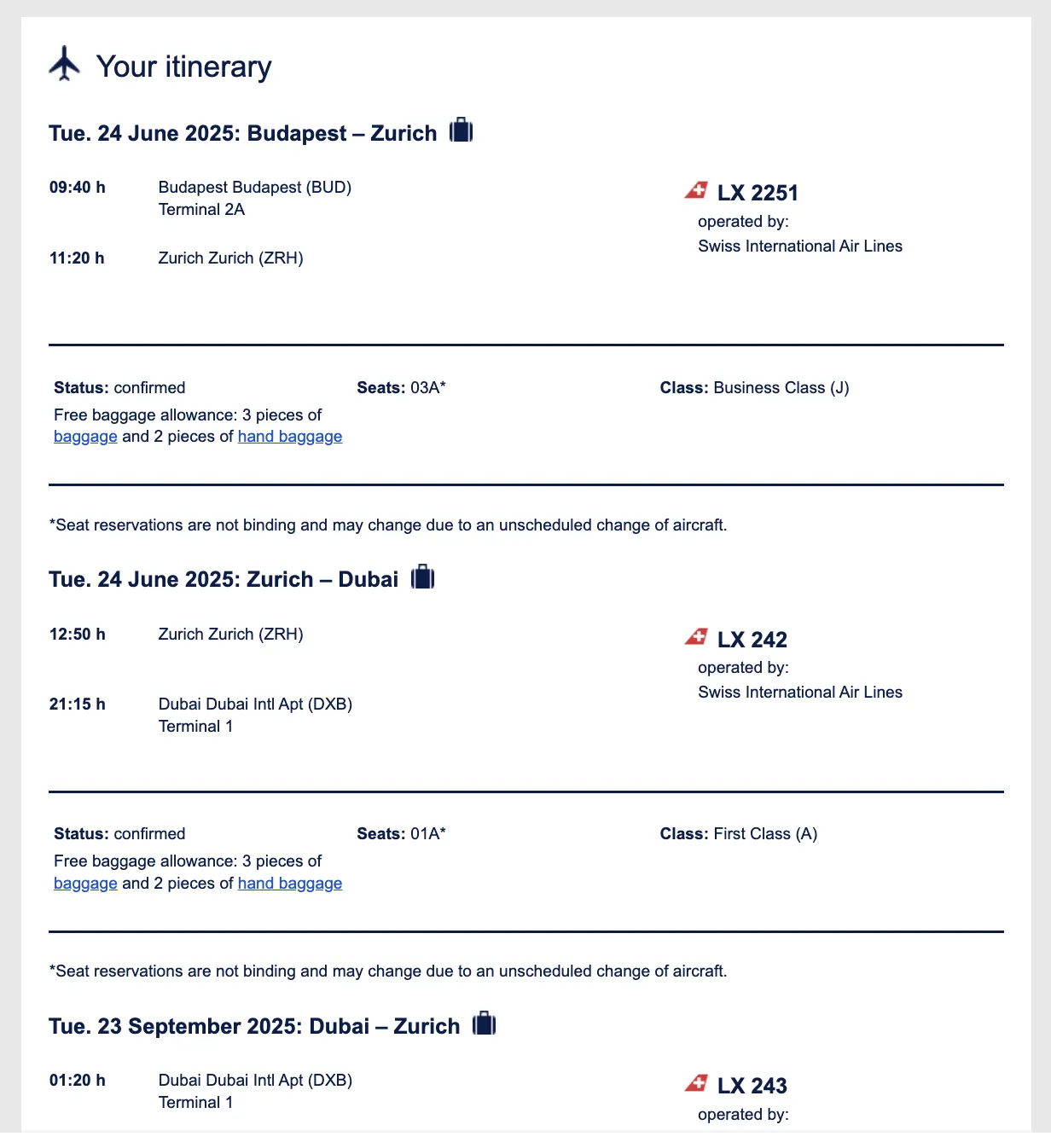
This guide outlines an end-to-end workflow to standardize your flight records, configure dependable offline access across mobile devices, and integrate your bookings into a cohesive trip timeline.
The Real-World Planning Problem: Why Scattered PDFs Fail
Airline confirmation PDFs are legal contracts of carriage and receipts, not just notifications. They contain crucial data points that standard calendar entries often miss:
- The 6-character PNR / Record Locator: Required for self-service kiosks, mobile check-in, and seat selections.
- The 13-digit E-Ticket Number: The true proof of ticket issuance. A booking code without an e-ticket number means a seat is reserved but not fully ticketed.
- Baggage Allowance Tiers: Documentation of whether personal items, carry-ons, or checked bags were paid for in advance.
- Fare Class and Restrictions: The specific fare basis code governing same-day standby rules, cancellation penalties, or flight-change eligibility.
When these records remain trapped in separate confirmation emails, two common failure points emerge:
- Inconsistent Offline Caching: Native mail apps frequently offload PDF attachments to the cloud to preserve local device storage. If you arrive at an overseas border control checkpoint without cellular connectivity, opening the email may show a spinning loading indicator instead of the requested proof of onward travel.
- Version Confusion: When airlines issue schedule changes or re-accommodate you after a delay, they issue updated receipts. Keeping multiple files named
eTicket.pdforConfirmation.pdfleads travelers to present outdated flight numbers or departure times.
Establishing a centralized storage system eliminates these points of friction.
Step 1: Standardize Your File-Naming Architecture
Before archiving or uploading any confirmation PDF, establish a uniform naming format. Default filenames generated by airline reservation systems—such as receipt_091326.pdf or Document(3).pdf—provide no useful context when you are scanning a folder on a mobile screen.
Adopt an unambiguous chronological syntax:
YYYY-MM-DD_[Carrier]_[FlightNumber]_[PNR]_[PassengerLastName].pdf
Worked Example: A Multi-City Journey
Consider a trip from Chicago to Tokyo with an onward connection to Sapporo, booked across two separate airlines:
- Outbound Long-Haul:
2026-10-15_ANA_NH11_ABC123_Smith.pdf - Domestic Connection:
2026-10-17_Peach_MM583_XYZ789_Smith.pdf - Inbound Return:
2026-10-28_United_UA882_ABC123_Smith.pdf
This structure delivers three operational benefits:
- Chronological Sorting: When sorted alphabetically in any operating system, the documents automatically arrange themselves in the order you will board.
- Rapid Reference: Ground agents can see the booking reference and flight number directly from the document list without waiting for the full PDF to render.
- Multi-Passenger Clarity: If you manage logistics for a partner, family, or travel party, the passenger surname prevents confusion over separate booking codes.
Step 2: Establish Local, Offline-First Mobile Storage
Never rely on live cloud sync when standing in a boarding line or clearing customs in a foreign terminal. You must force your device to store the actual file bytes locally on hardware storage.
For iPhone and iPad Users (Apple Files)
Apple's native Files app integrates with iCloud Drive, but files stored in iCloud are routinely purged from local hardware cache if storage pressure occurs. To guarantee offline access:

- Create a dedicated folder inside the Files app:
On My iPhone > Travel > [Trip Name]oriCloud Drive > Travel > [Trip Name]. - Move your standardized flight confirmation PDFs into that directory.
- If keeping the folder in iCloud Drive for multi-device sync, use Apple's pinning feature documented in the Apple Files guide: touch and hold the file or folder, then tap Keep Downloaded.
- Confirm that the download cloud icon disappears. The document is now stored in persistent flash memory and remains accessible in full airplane mode.
For Android and Multi-Platform Users (Google Drive)
Storing travel documents in Google Drive lets you view files across platforms, but mobile Drive apps stream files on demand by default. To retain full local access without an internet connection:
- Establish a clean trip folder:
Drive > Travel > [Year-Month Trip Name]. - Upload your renamed confirmation PDFs.
- Follow the official instructions in Google Drive offline support: open the Google Drive mobile app, tap the three dots (
...) next to the travel folder or individual PDF, and toggle Make available offline. - Verify the checkmark badge appears on the file icon, confirming the document is cached on your device's internal storage.
Step 3: Integrate Flight Documents into an Overarching Timeline
Storing static PDFs in mobile folders protects your receipts, but folders do not build an organized itinerary. You still need an operational overview that maps flights against hotel check-ins, regional trains, and day-by-day plans.
Using a central planner like Suitcase2Go allows travelers to organize trips with flights, stays, and daily plans in one structured dashboard. While dedicated travel databases organize your overall trip structure, keep their operational mechanisms in mind:
- Active Booking Capture: When finalizing reservations on airline portals, tools like the Suitcase2Go Chrome extension allow you to connect your account, select a Target Trip, and click Add to trip directly from the live confirmation screen. The extension submits active-page text and captures a visible-page screenshot to populate the timeline.
- Verification Discipline: Always verify automatically generated entries against your original confirmation PDF. Check departure times, arrival airports (such as Tokyo Narita vs. Haneda), and terminal details to catch any automated parsing discrepancies.
- No Direct PDF Upload Tools: Standalone travel tools generally do not offer one-click local PDF batch imports or arbitrary file hosting. Standalone PDFs remain your legal contract of record, while your trip organizer serves as your high-level chronological roadmap.
Step 4: Audit Critical E-Ticket Fields
Before archiving a confirmation PDF as "final," perform a two-minute manual audit. Compare the PDF against your booking confirmation screen to avoid costly gate-side surprises:

| Document Field | What to Check | Why It Matters |
|---|---|---|
| Ticket Status | Look for "Confirmed" and "eTicket Issued" | A "Pending" status means payment may not have settled, and no seat is guaranteed. |
| 13-Digit Ticket Number | Airline prefix (e.g., 016 for United, 006 for Delta, 205 for ANA) | Interline partner bookings can have different operating carrier and ticketing carrier codes. |
| Full Passenger Name | Exact match with passport or government photo ID | Middle names omitted or typos in surnames can cause boarding or immigration issues. |
| Cabin & Baggage Codes | Basic Economy vs. Standard Economy allowances | Confirms whether carry-on luggage is permitted without additional gate fees. |
| Operating Carrier Details | "Operated by [Partner Airline]" notations | Determines which terminal, check-in desk, and baggage counter you must visit at the airport. |
If you discover an omitted e-ticket number or misspelled name, contact the booking carrier immediately. Fixing ticketing errors weeks before departure is routine; correcting them at the check-in desk can lead to missed flights.
Step 5: Establish Redundancies for International Border Control
While digital organization should be your primary workflow, international transit introduces distinct regulatory hurdles. Certain immigration authorities require immediate proof of onward travel or return passage before granting entry stamps or transit visas.
- Dedicated Mobile Bookmark: Create a home screen shortcut or favorite tag for your offline travel folder in Apple Files or Google Drive. You should be able to open your return ticket PDF in fewer than two taps while approaching a border officer.
- The Single-Sheet Paper Backup: Print a single double-sided sheet containing your primary international flight e-ticket receipts and place it in an outer pocket of your carry-on bag. If your mobile device experiences a flat battery, thermal shutdown, or touchscreen failure after a 14-hour flight, you will still possess verifiable, physical documentation of your itinerary.
By establishing a standardized naming system, locking down offline mobile storage, and maintaining an organized trip itinerary with Suitcase2Go, you can replace frantic inbox searches with a structured, reliable travel workflow.