Traveling across international borders or multiple time zones introduces a frustrating digital hazard: the shifting calendar. When your phone connects to a cellular network in a new region, its operating system automatically updates the local clock. By default, major calendar applications recalculate every stored event to match that new local offset.
While this automatic conversion helps remote teams coordinate video calls across continents, it wreaks havoc on fixed travel reservations. A flight departing at 8:00 AM local time or a 3:00 PM hotel check-in can shift forward or backward by several hours on your digital grid, causing missed connections, scrambled rail departures, and double-booked days.

Understanding how calendar applications store time—and how to configure their display locks—ensures your cross-border itinerary remains stable throughout your journey.
Why Cross-Border Bookings Shift on Your Calendar
Most calendar platforms do not store events as static wall-clock times. Instead, they record events in Coordinated Universal Time (UTC) alongside an offset rule.
When you create an appointment labeled "9:00 AM" while sitting in New York (UTC-5) without specifying an event-level time zone, the calendar software records the entry as 2:00 PM UTC. When you land in London (UTC+0), your mobile device detects the UK network and advances its clock by five hours. The calendar renders that same UTC timestamp as 2:00 PM local time. If that event was an airport pickup in London that you entered before leaving home, an unanchored entry will appear five hours later than intended.
The Anatomy of a Scheduling Error
Consider this realistic scenario:
- Sample Route: San Francisco (SFO, UTC-8) to Tokyo (HND, UTC+9).
- The Reservation: You book a bullet train ticket from Tokyo to Kyoto departing at 10:00 AM on Wednesday.
- The Error: While planning at your desk in California, you add "10:00 AM Shinkansen Departure" to your calendar without setting the event's time zone to Tokyo Standard Time (TST). Your application assumes you mean 10:00 AM Pacific Standard Time (PST), storing it as 6:00 PM UTC.
- The Result: Upon landing at Haneda Airport, your phone updates to Japan time. The calendar displays your 10:00 AM train as departing at 3:00 AM on Thursday morning—completely skewing your daily schedule.
To eliminate this discrepancy, you must either pin your calendar display to a fixed time zone during travel or explicitly lock individual reservations to their local operational zones.
How to Lock Google Calendar Across Borders
According to Google Calendar time zone controls, Google Calendar stores all timestamps internally as UTC and provides dedicated toggles to override automatic device adjustments.
1. Freeze Time Zones on the Mobile App (iOS & Android)
By default, Google Calendar adjusts your timeline whenever your mobile operating system adopts a new network time. You can disable this behavior directly in the app settings:
- Open the Google Calendar app on your phone or tablet.
- Tap the Menu icon (three horizontal lines) in the top left corner and select Settings.
- Tap General.
- Locate the toggle labeled Use device time zone and switch it Off.
- Tap the Time zone field directly beneath it and choose your target location (for example, your destination's local city or your primary home time zone).
When disabled, Google Calendar stops listening to cellular network time adjustments. Every event remains anchored to the manual zone you selected until you choose to switch it.
2. Lock and Compare Views on Google Calendar Desktop
If you manage your travel arrangements on a laptop:
- Open Google Calendar in your web browser and click the Settings gear > Settings.
- Under the General tab, select Time zone.
- Ensure your Primary time zone is set intentionally. Uncheck Ask to update my primary time zone to current location if you want your desktop view to remain completely static while using hotel Wi-Fi abroad.
- Check Display secondary time zone and add your destination's zone with a clear label (e.g., "Destination - London"). This presents two parallel time rulers on your week view, making it easy to schedule calls between home and abroad.
3. Creating Cross-Border Transit Events in Google Calendar
For flights or overnight trains that begin in one zone and end in another, do not rely on standard single-block entries:
- Create a new event and open the detailed edit view.
- Next to the date and time selectors, click Time zone.
- Check the box labeled Use separate start and end time zones.
- Set the Event start time zone to the departure city (e.g., America/New_York).
- Set the Event end time zone to the arrival city (e.g., Europe/Paris).
This keeps your departure and arrival times aligned with airport flight boards regardless of where you are when checking your phone.
How to Lock Apple Calendar Across Borders
Apple provides distinct configuration methods for iPhone/iPad and macOS, including specialized override settings.
1. Enable Time Zone Override on iPhone and iPad
As outlined in Apple's iPhone Calendar guidance, iOS includes an explicit Time Zone Override designed specifically for travel:

- Open the Settings app on your iPhone or iPad.
- Scroll down and tap Apps, then select Calendar.
- Tap Time Zone Override.
- Toggle the switch to On.
- Tap Time Zone and search for your chosen reference city (such as your upcoming destination or your home city).
When Time Zone Override is active, events in the Apple Calendar app display strictly in that chosen zone, even after your phone connects to foreign cellular networks upon landing. Note that system alarms, lock-screen clocks, and reminders outside the Calendar app continue to follow your device's global location settings.
2. Enable Advanced Time Zone Support on macOS
On Mac laptops, Apple provides an even more flexible configuration. Detailed in Apple's Mac Calendar documentation, you can activate a dedicated time zone switcher:
- Open the Calendar app on your Mac.
- In the menu bar, choose Calendar > Settings (or Preferences), then click the Advanced tab.
- Check the box labeled Turn on time zone support.
- Close the settings window. A new time zone pop-up selector will now appear in the upper-right corner of your calendar window.
With this feature enabled, you can switch the entire calendar view between departure and destination zones with a single click.
The "Floating" Event Advantage on macOS
When Time Zone Support is active on macOS, editing an event reveals a Floating option in the Time Zone pop-up selector.
Assigning an event to Floating ties it strictly to wall-clock time rather than a fixed geographic offset. For instance, setting an 8:00 AM breakfast or an 11:00 AM hotel checkout as "Floating" ensures it stays at 8:00 AM and 11:00 AM everywhere, regardless of how often you switch calendar views or cross borders.
How to Manage Time Zones in Microsoft Outlook
Microsoft Outlook handles time zone shifts differently across its web, Windows, and macOS clients. Properly configuring these options prevents unexpected shifts in corporate itineraries and personal bookings.
1. New Outlook and Outlook on the Web
According to Microsoft Outlook time zone documentation, travelers can control prompts and secondary rulers:
- In New Outlook or Outlook on the Web, select Settings (gear icon) > Calendar > View.
- Under Time zones, locate Display my calendar in time zone and assign your target zone.
- Review the setting labeled When I travel across time zones, ask me if I want to update my time zone.
- If you prefer manual stability, decline prompts upon arrival to keep your calendar timeline locked to your pre-planned framework.
- To monitor multiple locations simultaneously, click Add time zone. New Outlook supports displaying up to 20 time zone columns side by side along your grid.
2. Outlook for Mac Event Pinning
As explained in Microsoft's Outlook for Mac guide, Outlook for Mac displays calendar grids using your operating system's default time zone. To protect a booking from shifting unexpectedly when macOS updates its clock:
- Double-click the event or appointment to open its details.
- Select Time Zones from the ribbon to expose specific zone pickers.
- Select the exact time zone of the city where the event takes place.
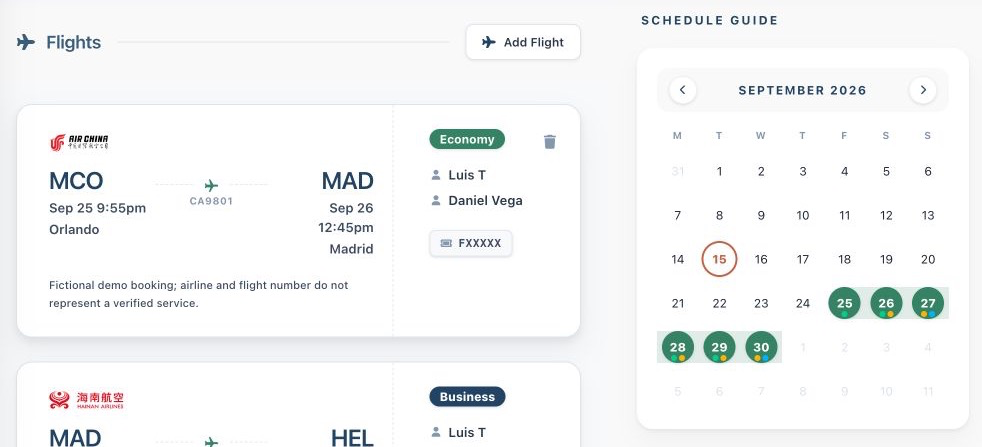
The Suitcase2Go web app displays flight cards and monthly schedules using sample demo data to illustrate structured trip organization.
Practical Cross-Border Planning Checklist
To guarantee that no reservation gets misplaced between departure and arrival, complete these verification steps before departure:
| Planning Step | Action | Platform Setting |
|---|---|---|
| Flight Legs | Set explicit start and end time zones for departure and arrival airports. | Google: Separate start/end zonesApple: Event Time ZoneOutlook: Start/End Time Zone |
| Hotel Check-ins | Lock event time to the property's local city. | Assign property's local zone or use macOS Floating |
| Tours & Dining | Anchor reservations to destination city hours. | Event-level time zone picker |
| Mobile App Display | Turn off automatic device time zone synchronization. | Google: Use device time zone = OffApple: Time Zone Override = On |
| Pre-Trip Review | Audit bookings against official airline/hotel PDF confirmations. | Compare local confirmation times with calendar slots |
Common Pitfalls and Manual Alternatives
Even with platform locks enabled, calendar handling has edge cases that travelers should prepare for:
1. App Override vs. Device System Clock
Locking the time zone inside your calendar app (such as Apple's Time Zone Override or Google Calendar's manual mode) only stabilizes your calendar views. Other applications on your phone—such as airline mobile apps, transit boarding passes, and system lock-screen widgets—continue pulling directly from your phone's cellular carrier clock. Never assume that locking your calendar updates your phone's alarms or flight gate notifications.
2. The Danger of Untagged All-Day Events
In many calendar applications, creating an all-day event (like "Stay at Grand Hotel") stores that block as midnight to midnight UTC. When you cross five or more time zones, that all-day block can shift across day boundaries, appearing as a two-day span or shifting to the previous afternoon. Always verify that multi-day stays align with actual check-in and checkout dates rather than relying solely on floating banners.
3. Comparing Manual Spreadsheets vs. Dedicated Organization
Many travelers maintain a manual spreadsheet (such as Google Sheets or Excel) listing dates, local departure times, and confirmation codes. While a spreadsheet is immune to automatic time zone recalculations because cells contain plain static text, it lacks interactive alerts, route visualization, and quick access to attached booking documents.
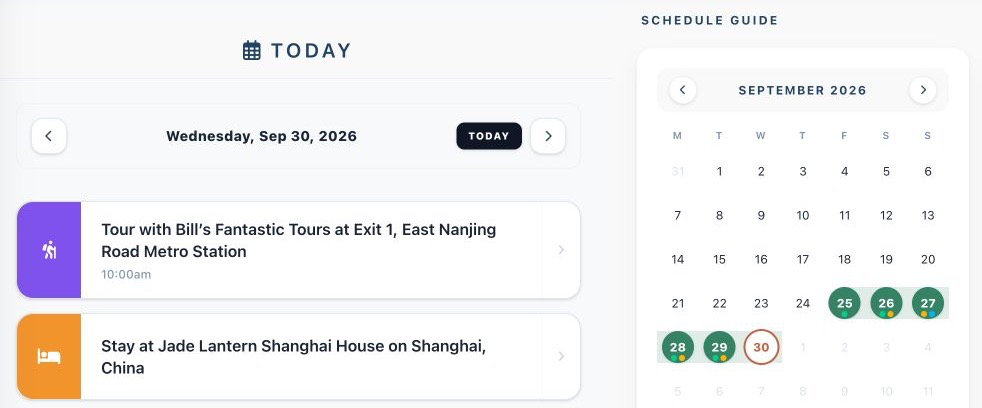
A daily itinerary view within the Suitcase2Go web app, featuring sample demo data for walking tours and hotel stays.
To maintain a clean overview without juggling disconnected calendar toggles or complex spreadsheets, you can use dedicated trip management tools. On Suitcase2Go, you can organize your flights, stays, and daily plans in one centralized place. When managing reservations from your browser, the Chrome extension lets you connect your account, select a Target Trip, and add active page text or visible screenshots, allowing you to cross-check entries directly against your confirmed reservation receipts.
By understanding how your preferred calendar software handles time zone conversions and locking your display settings before you depart, you can ensure your cross-border itinerary remains clear, accurate, and reliable from boarding to checkout.