
Moving through a modern transit hub should be as simple as tapping a screen, yet transit days often produce peak smartphone frustration. Travelers frequently find themselves holding up a security line while an app refreshes, frantically searching through unread emails for a PDF attachment, or tapping a subway turnstile only to trigger an unwanted payment card instead of a metro pass.
A seamless transit day does not happen by accident; it requires setting up your device before you step out the door. Mobile operating systems separate transit credentials into two fundamentally different technologies: near-field communication (NFC) taps and visual optical barcodes (QR codes and Aztec matrices). Understanding how your phone treats these tools—and configuring them in advance—eliminates gate friction and keeps your journey moving.

Understand the Core Mechanism: NFC Taps vs. Optical Barcodes
The most frequent point of failure during travel is expecting an optical scanner to read a contactless card or attempting to tap an optical barcode against an NFC sensor.
- NFC Contactless Passes (Tap-to-Pay & Express Transit): These include open-loop payment cards (contactless credit and debit cards) and dedicated closed-loop transit cards (such as Suica, SmarTrip, or Ventra). They communicate via radio frequency when held within two inches of a turnstile or reader. They do not require a visible image on your screen.
- Optical Barcodes (Boarding Passes & Intercity Rail Tickets): Airlines, long-distance rail operators (such as Amtrak or Eurostar), and event venues rely on 2D barcodes. These credentials demand high screen brightness, an unobstructed glass display, and direct line of sight with an optical camera or laser scanner. Tapping your phone against these readers achieves nothing.
Keeping this distinction clear determines how you set up your mobile wallet before departure.
Step 1: Pre-Trip Wallet Audit (T-24 Hours)
Do not wait until you arrive at the airport terminal or train platform to organize your passes. Conduct an audit 24 hours prior to departure.

Clear Out Expired and Stale Passes
Over multiple trips, digital wallets accumulate expired concert tickets, outdated boarding passes, and inactive hotel keys. On iOS, navigate to your wallet, scroll to the bottom, and review Expired Passes to archive old documents. On Android, review your wallet stack and archive inactive passes so they do not clutter your active carousel.
Import Real Digital Passes, Not Raw PDFs
Avoid storing primary boarding passes solely as emailed PDF attachments. When an airline or rail operator sends your check-in confirmation, tap the native link to add the credential to your wallet:
- For iPhone users, look for the official badge documented in Apple Support: Add, use, and share tickets and passes in Apple Wallet. Adding native passes enables time- and location-based lock screen triggers that surface your ticket right as you arrive at the departure terminal.
- For Android users, save passes directly using Google Wallet Help: Save & use flight or event tickets. Storing your boarding pass within Google Wallet ensures it remains accessible offline without an active cellular data connection.
- Pixel Shortcut: If you are using a Google Pixel 3 or newer phone and an operator only provides a web barcode without a native wallet button, take a screenshot of the barcode; Pixel firmware can surface an "Add to Google Wallet" prompt directly from the screenshot preview.
Step 2: Configure Express Transit for Contactless Turnstiles
Fumbling with Face ID or biometric fingerprint sensors while carrying luggage through crowded train stations or bus doors causes unnecessary bottlenecks. Both major platforms offer express features designed for hands-free speed.

Setting Up Apple Wallet Express Mode
Apple provides a dedicated setting that permits tapping turnstiles without unlocking your device or authenticating with Face ID, Touch ID, or a passcode. As outlined in Apple Support: Use Express Mode with transit cards, passes, and keys in Apple Wallet:
- Open the Settings app on your iPhone.
- Tap Wallet & Apple Pay, then select Express Transit Card.
- Choose your preferred closed-loop transit agency card (for cities supporting proprietary cards) or assign an eligible open-loop credit/debit card for systems that accept direct bank card taps (such as Transport for London or OMNY in New York).
- When you approach a fare gate, simply tap the top of your iPhone against the reader. You do not need to wake the screen or look at your camera.
Managing Battery Fail-Safes with Apple Power Reserve
One major advantage of Express Mode is battery independence. According to Apple Platform Security: Express Cards with power reserve, compatible iPhone models retain enough reserve power after iOS suspends normal operations to maintain the NFC controller for up to five hours. If your battery drains on the train, pressing the side button will display a low-battery icon with text indicating that Express Cards remain available, allowing you to tap through exit turnstiles.
Critical caveat: Power Reserve functions only when the battery drains naturally. If you manually power off your phone using the slider in Settings, Express Cards with Power Reserve are disabled.
Setting Up Tap-to-Pay in Google Wallet
For Android devices and Wear OS smartwatches, tap-and-go transit requires an active default contactless payment method. Follow the steps in Google Wallet Help: Use Google Wallet for transportation:
- Open the Google Wallet app.
- Verify that your intended transit payment method is designated as the default contactless card.
- If your destination transit agency uses closed-loop cards (such as Melbourne's myki or Chicago's Ventra), purchase or transfer that specific agency card directly inside Google Wallet.
- If using a Wear OS 4+ smartwatch, verify that express transit taps are enabled so you can tap turnstile validators without launching the watch app manually.
Device restriction notice: Closed-loop stored-value transit cards reside within a hardware secure element. Unlike credit cards, an individual transit agency card balance generally cannot exist simultaneously on both a phone and a smartwatch under the same balance. If you prefer tapping with your wrist, provision or transfer the transit card directly to the watch.
Step 3: Organize Multi-Segment Travel Documents
When your day involves multiple modes of transit—such as an airport express train, an international flight, and a hotel check-in—passes must be sequenced logically.
| Document Type | Primary Format | Access Method | Key Setting or Fallback |
|---|---|---|---|
| Subway / Local Bus | NFC Closed-Loop or Open-Loop Card | Proximity tap at turnstile | Apple Express Mode or Google Wallet Default |
| Regional / High-Speed Rail | 2D Optical Barcode (Aztec / QR) | Optical scanner at ticket barrier | Pre-downloaded native pass or static screenshot |
| Airline Boarding Pass | 2D Optical Barcode (PDF417 / Aztec) | Optical reader at TSA / gate | Lock screen notification or wallet stack top |
| Hotel Key / Vouchers | App-based Bluetooth or NFC / QR | Sensor at door lock or check-in desk | Active provider app or native pass |
Sequencing for Apple Wallet Users
By default, Apple Wallet stacks passes by date and location relevance. However, if your lock screen notification does not appear:
- Double-click the side button (or home button on older models) to reveal the card carousel.
- Touch and hold the relevant flight or train pass, then drag it to the top of the stack so it remains the immediate default when opened.
- If traveling with companions who use iPhones, use proximity pass sharing to hand off tickets locally by holding the tops of both devices together.
Sequencing for Google Wallet Users
Google Wallet automatically surfaces upcoming flight passes to the top of the screen on departure day, reflecting real-time updates like gate changes when supported by the carrier. To ensure uninterrupted access in foreign airports where roaming data may lag, open your boarding pass while still connected to hotel or lounge Wi-Fi so the rendered barcode and seat details cache fully on your local storage.
Step 4: Prepare an Unshakeable Redundancy Plan
Digital passes are convenient, but complete reliance on live cellular connections or a single device creates single points of failure. Implement three practical backup layers:
- The Static Screenshot Gallery: Always take a screenshot of your optical boarding pass and train ticket barcodes once check-in is complete. Place these images in a dedicated "Today's Travel" photo album or mark them as favorites. If a native wallet pass fails to render or an airline app hangs at the security checkpoint, you can open the screenshot instantly. Remember to turn screen brightness to 100% when presenting a photo barcode to an optical scanner.
- Physical Paper Backups: For international connections, complex multi-leg journeys, or jurisdictions with rigorous border inspections, carry a printed physical boarding pass. Self-service kiosks at airport departure halls will print paper slips in under 30 seconds at no cost.
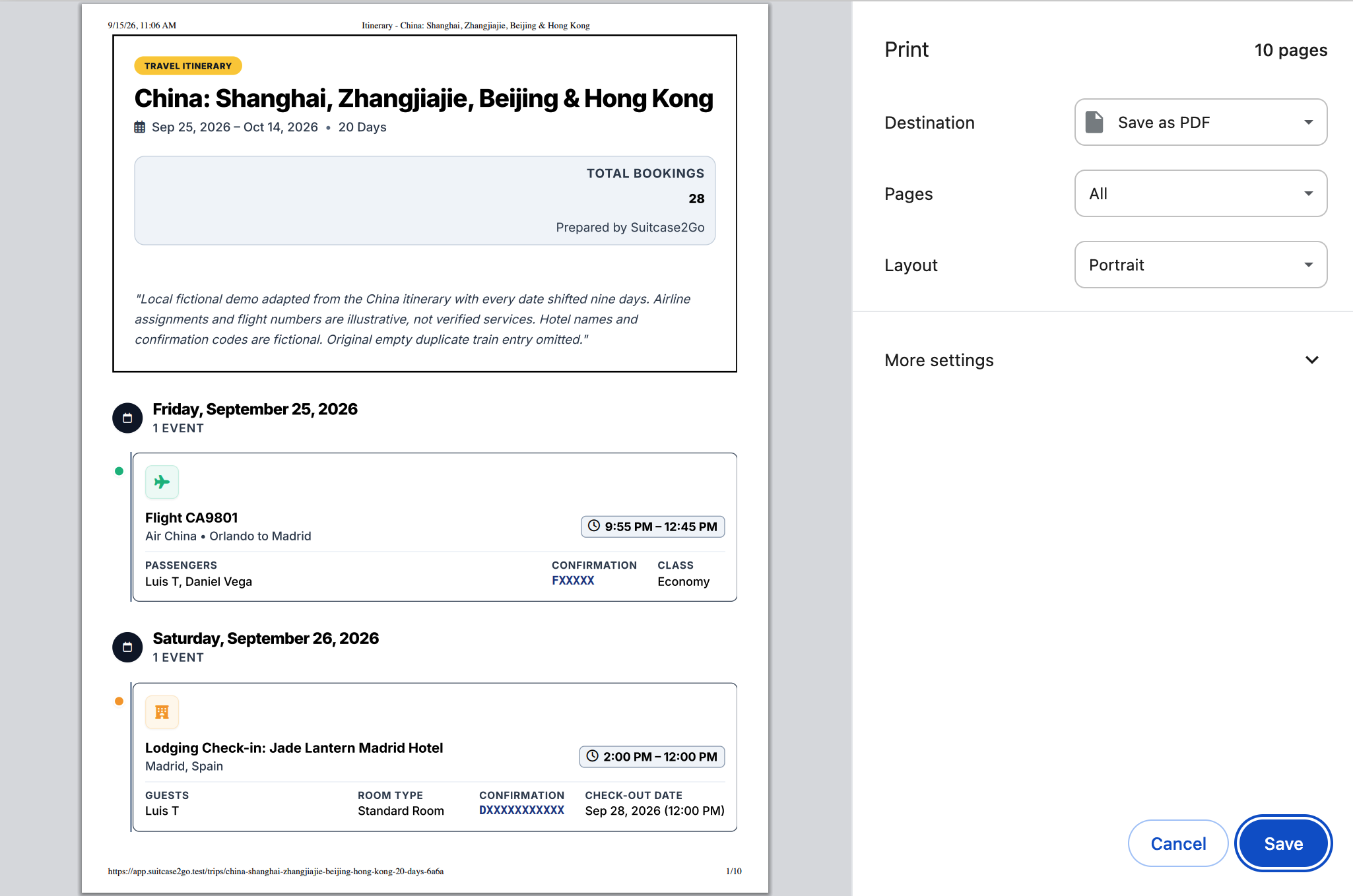
- Centralized Digital Itineraries: Wallet cards are isolated tokens; they show an individual boarding time or gate number, but they do not help you see the entire journey holistically. Keep all reservation numbers, confirmation emails, and check-in times organized in a dedicated trip plan. You can plan and organize comprehensive itineraries across flights, stays, and daily transit with Suitcase2Go, ensuring every confirmation detail remains structured and easy to share with travel partners before travel day arrives.
Troubleshooting Common Wallet Glitches at the Gate
- Turnstile Rejects Your Phone Tap: If an NFC validator gives a read error, ensure you are holding the top edge of your phone within an inch of the target reader, away from thick metal wallet cases or magnetic kickstands. If using Apple Wallet, verify that Express Transit has not been toggled off following an iOS software update.
- Barcode Scanner Cannot Read the Screen: Optical scanners struggle with low screen backlighting, privacy screen protectors, and cracked glass. Increase your display brightness to maximum, tilt the display slightly to eliminate overhead glare from terminal fluorescent lighting, and hold the screen stationary approximately 4 to 6 inches away from the scanner lens.
- Pass Missing After Device Transfer: If you migrate to a new smartphone on the road, remember that closed-loop transit cards do not automatically duplicate. You must open your wallet on the old device, remove the card to return its value to the provider cloud, and then select "Add Transit Card" on the new device to restore the existing balance.