Travelers frequently fall into the "pin-drop trap": bookmarking dozens of restaurants across a sprawling city based on articles, social recommendations, and friend tips, only to land on an unreadable sea of uniform pins. When dinner time arrives, that chaotic cluster offers no immediate clarity on which venues require reservations weeks in advance, which accept quick walk-ins between museum visits, and which are casual daytime cafes.
Over-structuring every meal into a rigid schedule destroys spontaneity, while having no plan leads to decision fatigue, long lines, and settling for mediocre tourist traps. The solution is organizing food research into mapped tiers—a structured spatial system that pairs non-negotiable anchor bookings with geographically clustered, flexible drop-in options.

The Three-Tier Dining Architecture
Mapping dining research effectively requires categorizing every spot by operational reality rather than food genre alone. A three-tier system establishes clear travel priorities directly on the map canvas.
Tier 1: Anchor Reservations (Fixed Commitments)
- What they are: High-demand tasting menus, hard-to-book regional specialties, or destination venues where booking in advance is mandatory.
- Planning role: These anchor the daily itinerary. You build your sightseeing morning and afternoon around the fixed location and time of a Tier 1 booking.
- Volume: Typically 1 per day at most, or 2 to 4 over the course of a week to prevent itinerary burnout.
Tier 2: Flexible Neighborhood Walk-Ins (Core Meals)
- What they are: High-quality bistros, trattorias, ramen shops, izakayas, or neighborhood favorites that take walk-ins or same-day waits of under 30 minutes.
- Planning role: These act as your primary spontaneous meal options. When sightseeing finishes around 1:00 PM or 7:30 PM, you open your map, look at the cluster nearest to your current location, and walk over.
- Volume: 3 to 6 per neighborhood or sightseeing cluster.
Tier 3: Tactical Drops (Quick Bites, Coffee, and Late-Night Backups)
- What they are: Third-wave coffee shops, bakeries, gelaterias, street food counters, and late-night noodle or slice shops with reliable hours.
- Planning role: These fill interstitial gaps: an afternoon caffeine stop, an immediate morning breakfast near your lodging, or an emergency late meal when sightseeing runs late and Tier 2 kitchens are closed.
- Volume: 2 to 4 per active neighborhood.
Choosing Your Mapping Tool: Capabilities and Limitations
No single mapping application handles tiered dining out of the box. Building a functional workflow requires understanding the exact technical limits of the major mapping platforms.

| Platform | Organization Method | Visual Differentiation | Offline Reliability | Best For |
|---|---|---|---|---|
| Google My Maps | Up to 10 distinct layers | Custom pin colors, shapes, and icons per layer | Desktop creation only; no native offline mobile caching | Complex multi-day trips requiring distinct visual layer toggling |
| Google Maps Lists | Saved custom lists (up to 3,000 places) | Distinct custom emoji icon per list | Base map works offline; custom layer filtering unavailable | On-the-go mobile lookups with custom emojis for each tier |
| Apple Maps Guides | Custom named guides | Standard map pins; no custom pin colors or emojis | Full offline search, routing, and card access in downloaded areas | Travelers relying on offline walking directions and Apple Watch navigation |
1. Google My Maps (Best for Visual Color-Coding on Desktop)
For visual clarity, Google My Maps allows travelers to construct custom maps with up to 10 distinct layers, holding up to 2,000 places per layer.
- The Workflow: Create separate layers named
Tier 1: Reservations (Red),Tier 2: Lunch/Dinner Walk-Ins (Blue), andTier 3: Quick Bites & Coffee (Green). My Maps allows you to style all pins in a layer with a specific color or icon, making it simple to uncheck layers and declutter your screen. - The Catch: My Maps requires a desktop browser to create and edit. On mobile devices, custom layers can be viewed through Google Maps, but you cannot edit them or toggle layers off cleanly. Crucially, My Maps layers do not sync with offline base maps.
2. Standard Google Maps Lists (Best for Mobile Emoji Identification)
If you manage research entirely on a smartphone, Google Maps Saved Places supports custom lists holding up to 3,000 places each.
- The Workflow: Build three distinct lists:
[City] Tier 1 - Booked,[City] Tier 2 - Casual Walk-Ins, and[City] Tier 3 - Coffee & Sweets. Assign a unique emoji to each list (such as a calendar 🗓️ for Tier 1, a steaming bowl 🍜 for Tier 2, and a coffee cup ☕ for Tier 3). These emojis render directly on your mobile map canvas. - The Catch: You cannot toggle entire lists on and off as easily as graphic layers. If you save dozens of spots across multiple lists, they all remain visible simultaneously unless you manually hide the list in your saved settings.
3. Apple Maps Guides (Best for Integrated Offline Navigation)
For iOS users traveling in areas with limited mobile data, Apple Maps Custom Guides offer clean list management that syncs automatically across Apple devices.
- The Workflow: Create named guides for each tier. When combined with Apple Maps downloaded offline maps, place cards, opening hours, ratings, and walking directions remain accessible even with cellular data switched off.
- The Catch: Apple Maps custom guides do not currently support custom pin colors or custom map-canvas emojis. Pins blend into standard system iconography on the broader map overview.
Step-by-Step Workflow: Building Mapped Tiers
To see this architecture in action, consider a worked planning example for a five-day stay in Rome.
Step 1: Centralize and Prune Research
Collect candidate venues from culinary guides, local food blogs, and recommendations into a staging sheet or temporary notes doc. Immediately filter out places that duplicate the same meal type in the same micro-neighborhood. Aim for balance across key areas: Centro Storico, Trastevere, Testaccio, and Prati.
Step 2: Establish Your Map Containers
Open your preferred tool and create three distinct containers:
Rome - T1: Booked AnchorsRome - T2: Walk-In Pastas & TrattoriasRome - T3: Gelato, Pizza al Taglio, Espresso
Step 3: Populate Critical Place Notes
Never save a pin without descriptive context. Both Google Maps and Apple Maps let you add private notes or edit descriptions on saved places. Record four essential details:
- The Core Specialty: What specific dish earned this place a spot? (e.g., "Cacio e pepe and fried artichokes")
- Operating Cadence: Rest days and mid-day closures. (e.g., "Closed Tuesdays; kitchen closes 3:00 PM to 7:30 PM")
- Booking Policy: (e.g., "Walk-in only at lunch; 15-min queue common after 8:00 PM")
- Payment Constraint: (e.g., "Cash-only at the counter")
Step 4: Perform a Spatial Density Audit
Review your map view zoomed out to city level. Look for geographic coverage gaps:
- Do you have an afternoon museum booked with no Tier 2 or Tier 3 pins within a 15-minute walk?
- Are all your Tier 2 dinner options clustered on the opposite side of the river from where your evenings conclude? Add one or two reliable walk-in options near your lodging and transit hubs for arrival and departure days.
Field Verification and Offline Preparation
A mapped system is only effective if it functions under real travel conditions. Avoid common mobile navigation traps:

- Cache Offline Data in Advance: If using Google Maps, use Google Maps Offline Areas to download the entire metro zone before departing your hotel Wi-Fi. Remember that Google Maps offline navigation is restricted strictly to driving routes; transit and walking directions will not calculate offline.
- Check Seasonal and Holiday Closures: Operating hours displayed on mapping platforms can lag behind temporary holiday closures, summer shut-downs, or kitchen renovations. Verify opening days against the venue's direct website or recent social updates before setting out on foot.
- Keep a Compact Offline Backup: Because custom My Maps layers can fail to render without a high-speed data connection, export your Tier 1 confirmations into your core itinerary document so you are never left searching for an address outside a restaurant door.
Organizing the Broader Itinerary with Suitcase2Go
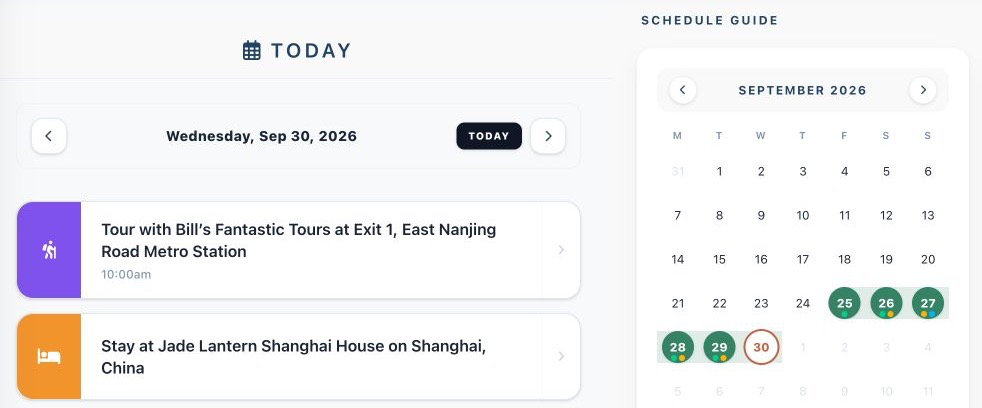
While mapping tools excel at spatial awareness, they do not replace day-by-day travel coordination. Juggling flight confirmations, hotel check-in times, museum tickets, and Tier 1 dining reservations exclusively inside a map leads to buried details and missed reservation cutoffs.
Suitcase2Go helps bridge this gap by organizing your overall trip timeline—keeping flights, stays, and daily plans structured in one unified view. Use your mapped tiers to decide where to eat in the moment, while anchoring your confirmed reservations, ticket times, and daily logistics directly within your Suitcase2Go itinerary to keep your travel days running smoothly.