
Landing in a foreign terminal without an active data connection quickly complicates arrival logistics. Arranging an airport taxi, locating public transit platforms, verifying lodging check-in instructions, and pulling up digital transit passes all require reliable connectivity. While purchasing a local physical SIM card at an arrival hall kiosk was once standard practice, digital eSIM technology allows travelers to purchase, install, and configure destination cellular access long before boarding their outbound flight.
However, installing an international eSIM is not as simple as scanning a code and forgetting about it. Misconfigured device settings can trigger unexpected domestic roaming fees, lock you out of primary banking two-factor authentication (2FA) SMS messages, or leave you stranded if an airport cellular tower experiences network congestion. This guide walks through configuring international eSIM profiles on iOS and Android, managing Dual SIM preferences, securing login access, and establishing offline redundancy before you leave the ground.

Step 1: Confirm Device Compatibility and Carrier Lock Status
Before purchasing any travel eSIM package, verify two essential hardware prerequisites: device eSIM support and carrier unlock status.
Hardware Compatibility
Most flagship smartphones manufactured since late 2018 support eSIM profiles. As documented in Apple's international eSIM guidance, iPhone XS, iPhone XR, and newer models support digital profiles, with newer generations allowing two active eSIMs simultaneously. Similarly, Google Pixel dual SIM support covers Pixel 3a and newer devices, with Pixel 7 and later hardware supporting Multiple Enabled Profiles (MEP) to run two active eSIMs at the same time.
Device exception note: Physical devices originally manufactured for sale in mainland China generally lack consumer eSIM hardware support (with select recent iPad releases as exceptions). Verify your specific regional model number if your handset was sourced internationally.
Verifying Carrier Unlock Status
An eSIM is simply a digital carrier profile. If your smartphone is carrier-locked under an active financing agreement or installment contract (common with carriers like AT&T, Verizon, or T-Mobile), your device will reject third-party travel profiles.
- On iOS: Open
Settings > General > Aboutand scroll to Carrier Lock. It must display No SIM restrictions. If it states "SIM locked," contact your carrier to request an unlock before proceeding. - On Android (Pixel/Stock): Open
Settings > Network & internet > SIMs. If the option to add or download a digital network profile is greyed out or prompts you to contact your original service provider, verify lock status with your network carrier.
Step 2: Choose the Right eSIM Plan and Check Activation Triggers
Independent travel eSIM providers aggregate data agreements with regional networks worldwide. Most international travel packages fall into three categories:
- Country-Specific Plans: Cost-effective data pools tied to local cellular partners within a single nation.
- Regional Bundles: Shared data packages valid across groups of neighboring countries (such as Europe's Schengen Area or Southeast Asia).
- Global Packages: Broad coverage across 80 to 130+ countries, typically with higher costs per gigabyte.
The Critical Detail: Activation Policies
Pay close attention to when an eSIM package's validity period begins. As outlined in the Airalo iOS installation guide, most aggregate travel eSIM profiles only initiate their validity countdown (e.g., 7 days, 15 days, or 30 days) the moment the profile connects to a supported roaming partner network in your destination country. This design makes it safe to install the profile several days prior to travel.
However, a small number of regional profiles trigger their active duration immediately upon profile generation or QR code installation. Review the provider’s package terms before downloading so you do not accidentally consume validity days while sitting on your living room couch.
Step 3: Install the Profile Over Stable Home Wi-Fi
Never attempt your initial eSIM profile installation over spotty airport Wi-Fi or while boarding an aircraft. The initial installation requires communicating with an SM-DP+ (Subscription Manager Data Preparation) server to download and cryptographically sign your virtual profile.

Pre-Flight Installation Sequence
┌───────────────────────────────────────────────┐
│ 1. Connect to reliable home Wi-Fi            │
│ 2. Scan QR code or install via provider app   │
│ 3. Label profile (e.g., "Travel Data")        │
│ 4. Turn travel line OFF until boarding        │
│ 5. Keep primary line active for home use      │
└───────────────────────────────────────────────┘
Most providers offer three installation paths:
- Direct App Installation: The provider's native mobile app uses system APIs to push the profile directly to your device settings.
- QR Code Scanning: The provider emails a QR code, which you scan using your device's camera via
Settings > Cellular > Add eSIM(iOS) orSettings > Network & internet > SIMs > Add(Android). - Manual Entry: If camera scanning is unavailable, you can manually paste the SM-DP+ address and activation code provided in your purchase receipt.
Once added, label your lines clearly in system settings. Designate your home SIM as "Primary" or "Home" and the new travel profile as "Travel Data" or the destination name (e.g., "Japan Data"). Leave the travel profile toggled off until the day of travel to preserve battery life and prevent search loops on unsupported home frequencies.
Step 4: Configure Dual SIM Settings for In-Flight and Arrival
When you board your international flight or cross into destination airspace, configure your device settings to prevent accidental domestic roaming charges while preserving vital communications.

Preventing Unintended Roaming Fees
If your domestic carrier charges steep daily flat fees (often $10 to $15 per day) as soon as your primary line registers international data usage, configure your settings carefully:
- Assign Mobile Data to the Travel eSIM: Under cellular settings, set your travel profile as the default line for cellular data.
- Disable Cellular Data Switching: On iOS, disable Allow Cellular Data Switching (
Settings > Cellular > Cellular Data). Leaving this on allows the device to pull data from your home plan if the travel eSIM encounters temporary reception loss. - Turn Off Data Roaming on the Home SIM: Ensure the "Data Roaming" toggle is switched OFF under your domestic line’s settings. On your travel eSIM line, ensure "Data Roaming" is switched ON (as travel eSIMs operate as roaming partners on local destination networks).
The Two-Factor Authentication (2FA) Challenge
Most third-party travel eSIMs are data-only. They do not include a traditional phone number capable of receiving carrier SMS messages or standard voice calls. If your bank, credit card, or airline requires an SMS security verification code to authorize a transaction abroad, turning off your primary SIM entirely will prevent those messages from arriving.
To manage this:
- Dual SIM Dual Standby (DSDS): Keeping your primary SIM toggled on with data roaming disabled allows standard international SMS reception (many domestic carriers receive incoming SMS abroad at zero cost, though you must verify your carrier's specific tariff schedule).
- Wi-Fi Calling Redundancy: As detailed in Apple's Wi-Fi Calling documentation, enable Wi-Fi Calling on your primary line before leaving your home country. This requires completing your home carrier's emergency address registration. When connected to hotel Wi-Fi or utilizing backup cellular data via DSDS, your phone can receive domestic SMS and voice calls without activating traditional cellular roaming.
- App-Based Authenticators: Whenever possible, migrate critical banking, email, and travel logins to hardware security keys or authenticator apps (such as software TOTP apps) prior to departure, eliminating reliance on SMS delivery.
Step 5: Build Redundant Offline Backups
Even the best travel data profiles can fail during remote transit, inside underground metro networks, or when local carriers experience outages. Do not let digital cellular data be your single point of failure.
Download Offline Navigation Areas
Local cellular navigation consumes substantial battery life and fails entirely without line-of-sight signal. As outlined in Google Maps offline documentation, download your arrival city and regional transit corridors prior to departure.
- Open Google Maps, tap your profile icon, and select Offline maps.
- Tap Select your own map, center the rectangular boundary over your destination city, and tap Download.
- Offline boundaries provide driving directions, point-of-interest searching, and GPS positioning without requiring an active cellular handshake. Note that public transit schedules, live traffic updates, and walking elevation contours require active data and will be unavailable while disconnected.
Consolidate Digital Paperwork
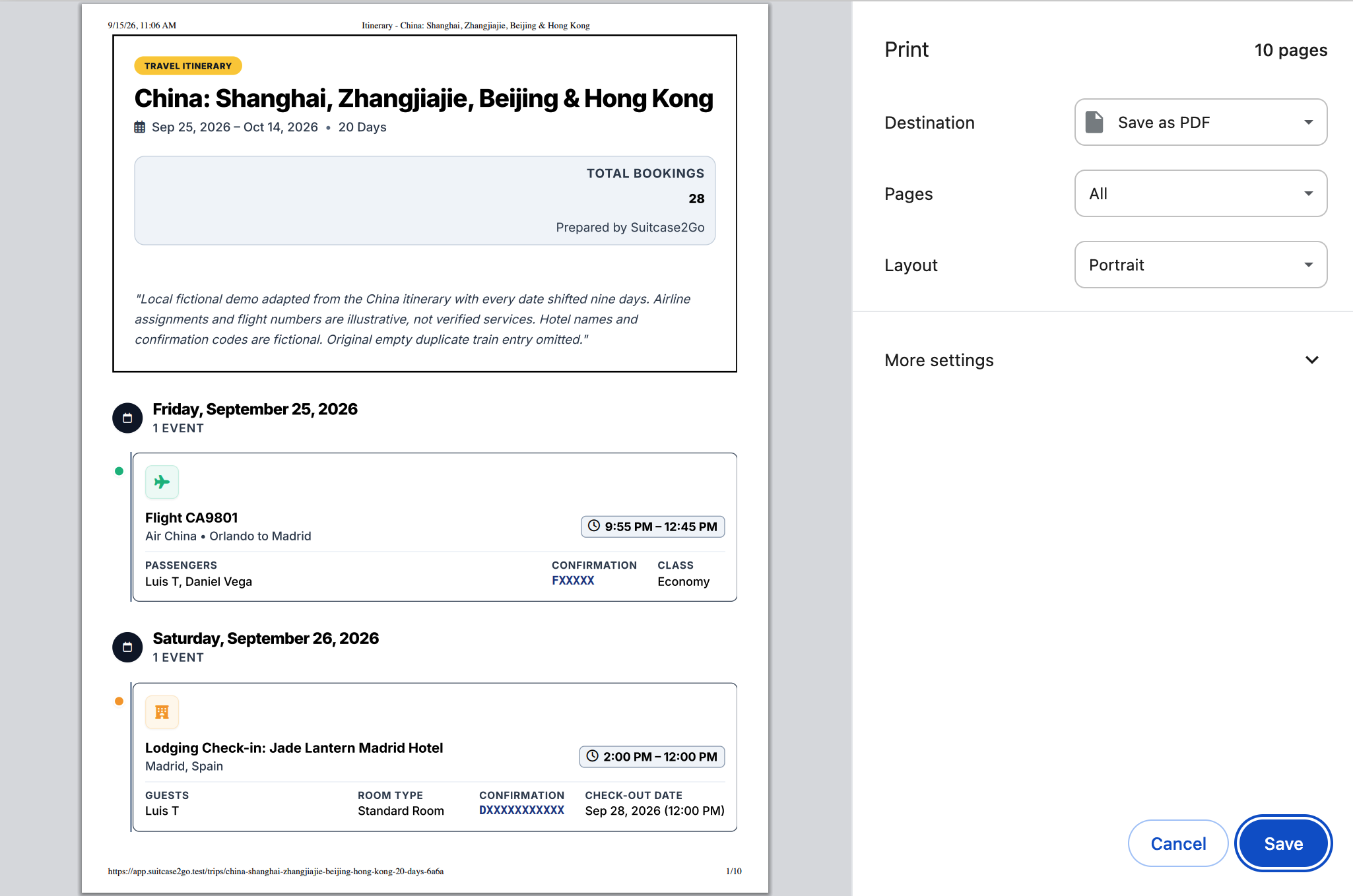
Keep your essential travel paperwork organized and accessible without depending on live email searches. Centralizing flight reservations, hotel check-in confirmations, car rental vouchers, and eSIM installation receipts into one organized workspace ensures you are never stuck waiting for an arrival gate page load.
Travelers can organize multi-leg itineraries and assemble flight, lodging, and activity plans in one structured dashboard using Suitcase2Go. Having your confirmation numbers, addresses, and schedule details arranged cleanly in your trip view makes arrival management straightforward, even while your device establishes its initial local network connection.
Quick Pre-Flight Checklist
Run through this quick configuration checklist before your departure flight boards:
- Device Unlocked: Verified "No SIM restrictions" in device settings.
- Profile Installed: Downloaded the travel eSIM over secure home Wi-Fi.
- Labels Assigned: Distinctly labeled "Home" and "Travel Data" lines.
- Data Line Designated: Selected the travel eSIM for mobile data.
- Data Switching Disabled: Prevented auto-switching back to the primary line.
- Roaming Set Correctly: Data roaming OFF on primary SIM; ON on travel eSIM.
- Wi-Fi Calling Active: Configured and tested on the primary line before departure.
- 2FA Ready: Switched essential accounts to authenticator apps where supported.
- Offline Maps Cached: Downloaded destination boundaries for arrival navigation.
- Receipts Stored: Retained SM-DP+ codes and provider support contacts offline.