
Coordinating travel logistics is challenging enough when everyone on the trip is comfortable using modern smartphone tools. When you need to keep grandparents, older parents, or less tech-confident family members informed, standard modern travel apps often create unexpected friction. Demanding that an anxious relative download a new third-party application, configure a fresh login, remember two-factor authentication codes, and navigate multi-layered submenus usually results in confusion, unread updates, and repeated phone calls asking what terminal you are flying into.
Keeping loved ones informed—whether they are staying home as emergency contacts or traveling alongside you—requires meeting them where they are comfortable. The most successful family travel workflow relies on clear visual hierarchy, bulletproof read-only permissions, and formats that require zero technical effort to open.

Here is a practical, step-by-step framework to assemble and share travel plans so that every family member stays informed, reassured, and organized.
Why Modern Travel Apps Fail Non-Tech-Savvy Travelers
Before choosing a sharing method, it helps to understand why modern collaborative software frustrates non-technical users:
- Account Friction: Requiring an account creation step or mobile app installation creates an immediate barrier. If an email link demands a password reset before revealing a flight time, the recipient will often abandon the attempt.
- Accidental Edits: Granting collaborative editing access to someone unfamiliar with touch interfaces can result in deleted flight reservations, misplaced hotel pins, or broken dates.
- Information Overload: Dynamic apps often display interactive maps, seat configuration charts, booking reference metadata, and loyalty program balances. A non-technical relative usually wants three simple answers: Where are you right now?, How do I call your hotel?, and When do you arrive?
- Network Dependency: Relying exclusively on mobile applications that require live cellular roaming can strand family members if they land in a foreign airport without an active data connection.
To solve these challenges, your sharing workflow must separate the organizer's workspace (where you manage reservations and fine-tune schedules) from the viewer's presentation (a clean, read-only output that works on paper, in an email, or via native phone tools).
The Three-Tier Sharing System
A dependable sharing strategy does not rely on a single channel. Instead, deploy three complementary formats tailored to varying comfort levels.
| Tier | Format | Best For | Technical Barrier |
|---|---|---|---|
| Tier 1: Physical Paper | Printed one-page summary | Travel day carry-on, bedside table at home | None (no device required) |
| Tier 2: Static PDF | Email attachment or text message file | Offline phone reference, tablet storage | Extremely low (opens natively in any browser or viewer) |
| Tier 3: Read-Only Cloud Calendar | Native Google or Apple Calendar subscription | Automatic time zone adjustments, real-time schedule tweaks | Low (subscribes once, updates silently in the background) |
Step 1: Build the Single-Page "Master Cheat Sheet"
Regardless of what digital tools you use, always start with a clean, single-page summary. Whether printed on physical paper or saved as a static PDF, this document serves as the undisputed emergency reference.
Formatting Rules for Readability
- Use Large, High-Contrast Type: Set your document body to at least 11-point or 12-point sans-serif type (such as Arial or Calibri). Use bold section headers to distinguish each calendar day clearly.
- Include Full Local Contact Details: Never write just "Hilton Downtown." Provide the complete physical street address in both English and the local language (if traveling internationally), alongside the hotel's direct local telephone number with international dialing prefixes included.
- Isolate Flight Details: List the airline, terminal number, scheduled local departure time, local arrival time, and six-character booking reference (PNR).
- Add Emergency Backups: Include your travel insurance policy number, 24-hour assistance hotline, local emergency service numbers (such as 112 in Europe or 911 in North America), and the address of the nearest embassy or consulate.
Converting and Distributing Static Files
If your relatives can open an email attachment or text message, a PDF is far superior to sending multiple raw screenshots. Modern web browsers allow you to convert any formatted web itinerary or document into a clean PDF using native print controls. In Google Chrome, Microsoft Edge, or Safari, pressing Ctrl+P (Windows) or Cmd+P (macOS) opens the system print window, where you can select Save as PDF as the destination.
If you prefer to print an existing agenda directly from your desktop calendar, Google provides detailed guidance through the Google Calendar Help: Print Your Calendar workflow. Selecting the dedicated Schedule view before printing generates an uncluttered, chronological list of events that avoids overlapping calendar grid lines.
Step 2: Set Up Read-Only Shared Calendars
If your family members already check a native calendar app on their smartphone, subscribing them to a dedicated travel calendar provides automatic date and time adjustments without introducing complex new software.
The critical safeguard is configuring read-only permissions. Never invite a less confident user as an editor, which leaves your master dates vulnerable to accidental taps.
For Google Calendar Users
If your relatives use Gmail or an Android device, share an isolated sub-calendar rather than your primary personal calendar:
- Open Google Calendar in a desktop web browser.
- On the left side under My calendars, click the plus icon (
+) and create a calendar named specifically for the trip (e.g., Smith Family Trip 2026). - Hover over the new calendar, click the three-dot menu, and select Settings and sharing.
- Scroll down to Share with specific people or groups, click Add people, and input your relative's email address.
- In the permissions dropdown, select See all event details. Avoid selecting Make changes to events or Make changes and manage sharing.
Detailed walkthroughs for these permission boundaries are documented in the official Google Calendar Help: Share Your Calendar guide. Once shared, your relative receives an invitation email containing a single link to display the trip schedule directly inside their existing interface.

For Apple iCloud Calendar Users
If your family relies on iPhones or iPads, sharing via iCloud is straightforward:
- Open the built-in Calendar app on iOS.
- Tap Calendars at the bottom of the screen.
- Tap the Info button (
i) next to your dedicated trip calendar. - Select Add Person and enter your family member's contact information.
- Tap the person's name on the sharing screen and ensure the Allow Editing toggle is switched off.
For a complete overview of iOS calendar sharing parameters, review the official instructions via Apple Support: Share iCloud Calendars on iPhone. With read-only access enabled, changes you make to flight times or hotel notes will sync invisibly to their device without risking accidental deletion.
Step 3: Low-Stress Solutions for Day-of-Travel Updates
Even with a printed cheat sheet and a synced calendar, flight delays and transit changes happen. Expecting a non-technical relative to monitor third-party flight radar boards or airport monitors remotely often induces unnecessary worry. Use simple, platform-native tracking instead.
1. Leverage Native SMS and Search Flight Cards
Instead of sending complex booking portal links, send a simple SMS message containing the airline code and flight number (e.g., Delta 142 or DL142).
- On iOS devices, typing a valid flight format automatically generates an interactive hyperlink in Messages. Tapping it opens a clean, native preview showing live departure progress, gate assignments, and baggage carousel numbers.
- On Android devices or desktop browsers, typing the airline and flight number directly into Google search displays an authoritative, live status card immediately at the top of the search results without navigating ad-heavy flight tracking websites.
2. Native Real-Time Location Sharing
If you want traveling companions or anxious relatives at home to see your transit progress without calling you repeatedly during transfers, native map location sharing is the simplest option.
Using the workflow outlined in Google Maps Help: Share Your Real-Time Location, you can share a live pin directly from your mobile device. You can configure the duration for a specific window (such as 4 hours while driving between regional destinations) or generate a private web link sent via text message. The recipient does not need an active Google account to view the web-based tracking pin.
Step 4: Register with Official Safety Programs
When traveling abroad, do not rely solely on family members to monitor regional travel alerts or security advisories. For United States citizens and nationals traveling internationally, the Bureau of Consular Affairs provides a formal notification channel through the U.S. Department of State: Smart Traveler Enrollment Program (STEP).
Enrolling your itinerary in STEP connects your travel dates and destination cities to the nearest U.S. Embassy or Consulate. In the event of severe weather, natural disasters, or civil unrest, both you and designated emergency contacts back home receive verified consular updates directly via standard email or SMS.
Worked Example: A 4-Day Family Trip Itinerary
To see how this structure works in practice, review this sample one-page agenda formatted for printing and sharing with non-technical companions:
============================================================
FAMILY VACATION: SAVANNAH, GEORGIA (OCTOBER 15 - 18, 2026)
Emergency Contact: Sarah Smith (+1-555-019-2831)
Hotel: The Marshall House, 123 E Broughton St, Savannah, GA 31401
Front Desk Direct Phone: +1-912-555-0144
Reservation Name: Smith | Confirmation: #MH-88204
============================================================
THURSDAY, OCTOBER 15 (TRAVEL & ARRIVAL)
• 09:15 AM - Depart Atlanta (ATL) on Delta Flight DL1842
Confirmation: K9X2LP | Terminal South
• 10:22 AM - Arrive Savannah/Hilton Head Airport (SAV)
• 11:00 AM - Uber / Taxi to The Marshall House (approx. 25 mins)
• 01:00 PM - Lunch at The Olde Pink House (Reserved for 4 guests)
• 04:00 PM - Official Hotel Check-In
• 07:00 PM - Casual dinner along River Street
FRIDAY, OCTOBER 16 (HISTORIC DISTRICT WALKING)
• 09:00 AM - Breakfast at hotel dining room
• 10:30 AM - Old Town Trolley Tour (Boarding at Stop 1)
Tickets: Printed under reservation name Smith
• 01:00 PM - Lunch break near Forsyth Park
• 03:30 PM - Rest & free time at hotel
• 06:30 PM - Dinner at Vic's on the River
SATURDAY, OCTOBER 17 (TYBEE ISLAND EXCURSION)
• 09:30 AM - Drive to Tybee Island Beach (Rental car in hotel valet)
• 11:00 AM - Tybee Island Light Station visit
• 01:30 PM - Seafood lunch at The Crab Shack
• 04:30 PM - Return drive to Savannah
• 07:30 PM - Dinner at Treylor Park
SUNDAY, OCTOBER 18 (DEPARTURE)
• 10:00 AM - Hotel Check-Out (Luggage held at front desk)
• 11:30 AM - Light brunch downtown
• 01:30 PM - Depart hotel for airport via taxi
• 03:45 PM - Depart Savannah (SAV) on Delta Flight DL2105
• 04:55 PM - Arrive Atlanta (ATL)
============================================================
Notice how every day highlights specific meeting times, clear transport methods, and direct phone numbers. There are no ambiguous placeholders, external hyperlinks that require logins, or missing addresses.
Streamlining Trip Preparation with Suitcase2Go
Maintaining a pristine travel schedule requires keeping your own source materials organized before you create simplified family outputs. That is where Suitcase2Go fits into your preparation.
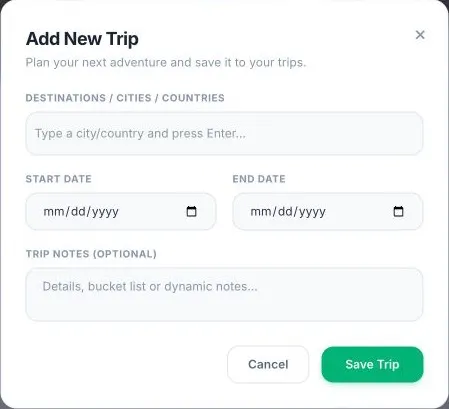
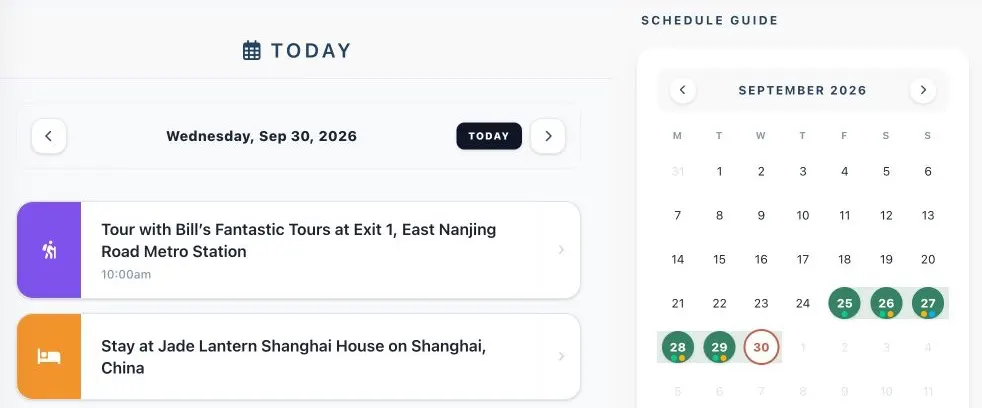
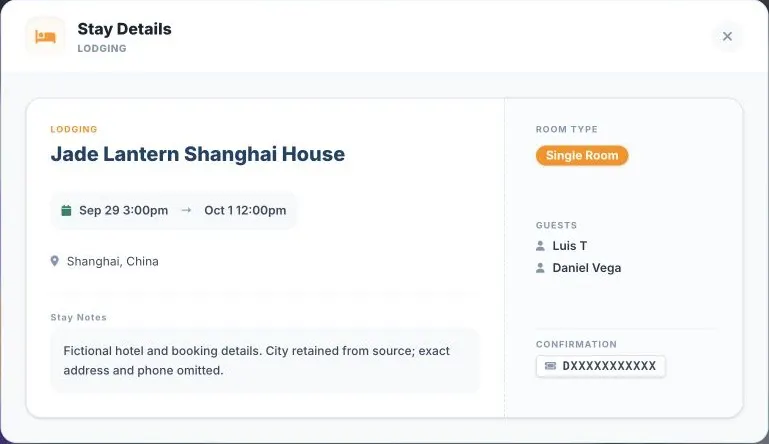
Suitcase2Go allows travelers to organize flights, lodging reservations, and daily activities into a cohesive master plan. When you need to share details with others, the web interface includes built-in tools to keep logistics under control:
- Dedicated Sharing Controls: The web trip menu includes a Share feature where you can enter a recipient's email address and assign a specific permission choice, ensuring you stay in control of who can modify your schedule.
- Print Trip Dialogue: Selecting Print Trip triggers your browser's native print window. From there, you can output clean paper copies for travel folders or choose Save as PDF to generate a lightweight digital file that can be texted or emailed directly to family members.
- Booking Attachments & Emails: Store original confirmation emails and uploaded documentation directly alongside your reservations so you always have immediate access to policy rules, seat confirmations, and vouchers if questions arise on the road.
Because third-party itinerary imports and automated one-click saving are not supported, travelers retain full manual oversight when entering details, verifying confirmation codes, and formatting outputs for their group.
Final Checklist Before You Depart
Before heading to the airport or embarking on your road trip, complete this final five-minute communication check:
- Distribute Paper Copies: Hand physical printouts to traveling relatives and leave one copy on the kitchen counter or refrigerator for those staying behind.
- Test the PDF: Email your exported PDF to a family member's phone and confirm they can open the attachment without entering a password.
- Verify Calendar Permissions: If using Google or iCloud calendars, double-check that the recipient's access level is explicitly set to read-only.
- Review Emergency Numbers: Ensure all hotel phone numbers and emergency contacts feature complete international dialing codes if traveling abroad.
By prioritizing simplicity and eliminating technical obstacles, you can keep your entire family aligned, safe, and relaxed throughout your journey.