Few travel disruptions create more immediate panic than landing in a foreign country, swapping to a local data SIM, and watching your primary email or banking app demand an SMS verification code sent to a domestic phone number that is no longer receiving cellular service.
Every year, travelers find themselves locked out of accommodation confirmations, train tickets, and digital wallets because their security settings rely on the assumption that they will always have domestic cellular reception.
Building a resilient two-factor authentication (2FA) and account recovery plan before departing ensures you maintain access to vital accounts even if you change SIM cards, lose cellular connectivity, or have your primary smartphone lost or stolen.

The Core Risk: The "SMS Trap" and Device Loss Abroad
Most mainstream online services default to SMS-based one-time passcodes (OTPs) for multi-factor authentication. While simple at home, SMS-based verification is vulnerable while traveling for two distinct reasons:

- Carrier Incompatibility and SIM Swapping: When you install a local physical SIM card or a regional data-only eSIM, your domestic phone number becomes inactive unless you maintain an active dual-SIM setup with international roaming or Wi-Fi calling enabled. If your phone cannot receive texts sent to your primary domestic number, any login challenge requiring SMS becomes an immediate dead end.
- Total Device Loss: If your primary smartphone is dropped in transit, damaged by water, or stolen, you lose both your primary login terminal and your default 2FA authenticator app. Without a pre-established offline contingency, recovering access from a borrowed browser or secondary tablet can take days—or permanently lock your account.
According to the Cybersecurity and Infrastructure Security Agency Multi-Factor Authentication Fact Sheet, SMS- and voice-based verification represent legacy authentication layers susceptible to interception and telecommunications disruptions. Migrating to time-based one-time password (TOTP) software authenticators, passkeys, and pre-generated cryptographic backup codes provides significantly greater operational reliability overseas.
Step 1: Migrate from SMS to Offline Authenticator Apps
Software authenticator apps—such as Google Authenticator, Microsoft Authenticator, or 1Password—use the open Time-based One-Time Password (TOTP) standard.
A key advantage of TOTP authenticators is that they generate valid six-digit authentication tokens mathematically based on your device’s internal clock. They do not require an active cellular connection, Wi-Fi network, or domestic phone line to generate working login codes.
Implementation Checklist
- Audit your primary personal email, business workspace, and flight booking portals.
- Replace SMS text verification with a dedicated authenticator app.
- Ensure the authenticator app is synced to an encrypted cloud backup or installed on a secondary hardware device (such as an iPad, laptop, or secondary backup smartphone) that travels with you in your carry-on luggage.
Note on Banking Providers: Several retail banks still mandate SMS verification for high-risk transactional fraud checks and decline to support third-party TOTP apps. Contact your bank before departure to confirm whether their app supports in-app push notifications or whether your domestic carrier allows SMS reception over Wi-Fi calling while connected to hotel networks abroad.
Step 2: Generate and Secure Google Account Backup Codes
Because Google accounts often house airline receipts, boarding passes, calendar schedules, and cloud backups, losing access can paralyze your journey. Google provides an official mechanism designed specifically for situations where you lack cellular reception or access to your default prompts.

According to official guidance on how to sign in with backup codes, Google accounts support generating a set of 10 printable, single-use, 8-digit verification codes:
- Navigate to your Google Account security settings via a desktop browser.
- Under "How you sign in to Google," select 2-Step Verification.
- Scroll down to Backup codes and select Set up or Get backup codes.
- Print this 10-code sheet or write the codes down on physical index cards.
Critical Constraints
- Each 8-digit code can only be used once. Cross off each code as you use it.
- Generating a new batch of backup codes immediately invalidates any previously generated codes.
- Accounts enrolled in Google’s Advanced Protection Program cannot use standard printable 8-digit backup codes; those accounts require physical FIDO2 hardware security keys.
Step 3: Establish Microsoft Account Fallbacks
If you rely on personal Outlook, Hotmail, or OneDrive accounts, Microsoft strictly enforces account security protocols. When two-step verification is enabled, Microsoft strongly recommends maintaining at least three pieces of security contact information on file (such as an authenticator app, a secondary backup email, and an alternate phone number).
If you lose your login credentials without backup proofs, Microsoft enforces a mandatory 30-day security lockout period during which access cannot be bypassed by customer support.
To safeguard access, generate a 25-character master recovery code as outlined in Microsoft's documentation on how to get a Microsoft account recovery code:
- Log in to
account.live.com/proofs/manage/additional. - Scroll to the Recovery code section and select Generate a new code.
- Record the 25-character alphanumeric key and store it securely away from your laptop or phone.
Note: Similar to Google, generating a new master recovery code revokes all prior recovery codes.
Step 4: Configure Apple Account Recovery Options
Apple provides two distinct safeguards for travelers using iPhones, iPads, and MacBooks: Account Recovery Keys and Recovery Contacts. Choosing the right option requires understanding a critical operational trade-off.
Option A: Apple Recovery Contact (Recommended for Most Travelers)
Apple allows you to designate up to five trusted family members or friends as emergency recovery contacts. Details provided in Apple's guide to set up a recovery contact for your Apple Account show how this works:
- A recovery contact must own an Apple device running current operating software (iOS 15, iPadOS 15, macOS Monterey 12, or later).
- A recovery contact never receives direct access to your account, files, or messages.
- If you lose your iPhone abroad, you can borrow any device, call your recovery contact, and ask them to generate a 6-digit recovery code from their device settings to unlock your account.
Option B: Apple Account Recovery Key (High-Security Contingency)
For users who prefer not to rely on family members, Apple outlines how to set up a recovery key for your Apple Account. This generates a private 28-character alphanumeric key:
- The Critical Trade-Off: Activating a recovery key permanently deactivates Apple’s standard account recovery process. If you lose your trusted Apple devices and misplace your 28-character key, Apple Support cannot unlock or reset your account under any circumstances.
- Never enable this feature unless you have a proven method of storing physical or encrypted off-device copies of the key.
Step 5: Secure Offline Storage and Travel Vaults
Generating emergency codes is useless if they are saved exclusively as screenshots on the very smartphone that gets lost on a foreign train platform. You need a redundant, physically decoupled storage workflow:
| Storage Method | Security Level | Travel Accessibility | Best Practice |
|---|---|---|---|
| Physical Paper Slip | High (physical isolation) | Immediate | Keep folded inside a waterproof passport wallet or hotel room safe separate from your phone. |
| Secondary Device | High (biometric barrier) | Moderate | Sync an authenticator app or encrypted vault to an iPad or laptop carried in a separate bag. |
| Screenshot in Photos | Dangerous / Vulnerable | Zero if phone is lost | Avoid. If your phone is lost, stolen, or damaged, your recovery codes vanish with it. |
Practical Trip Planning and Itinerary Continuity
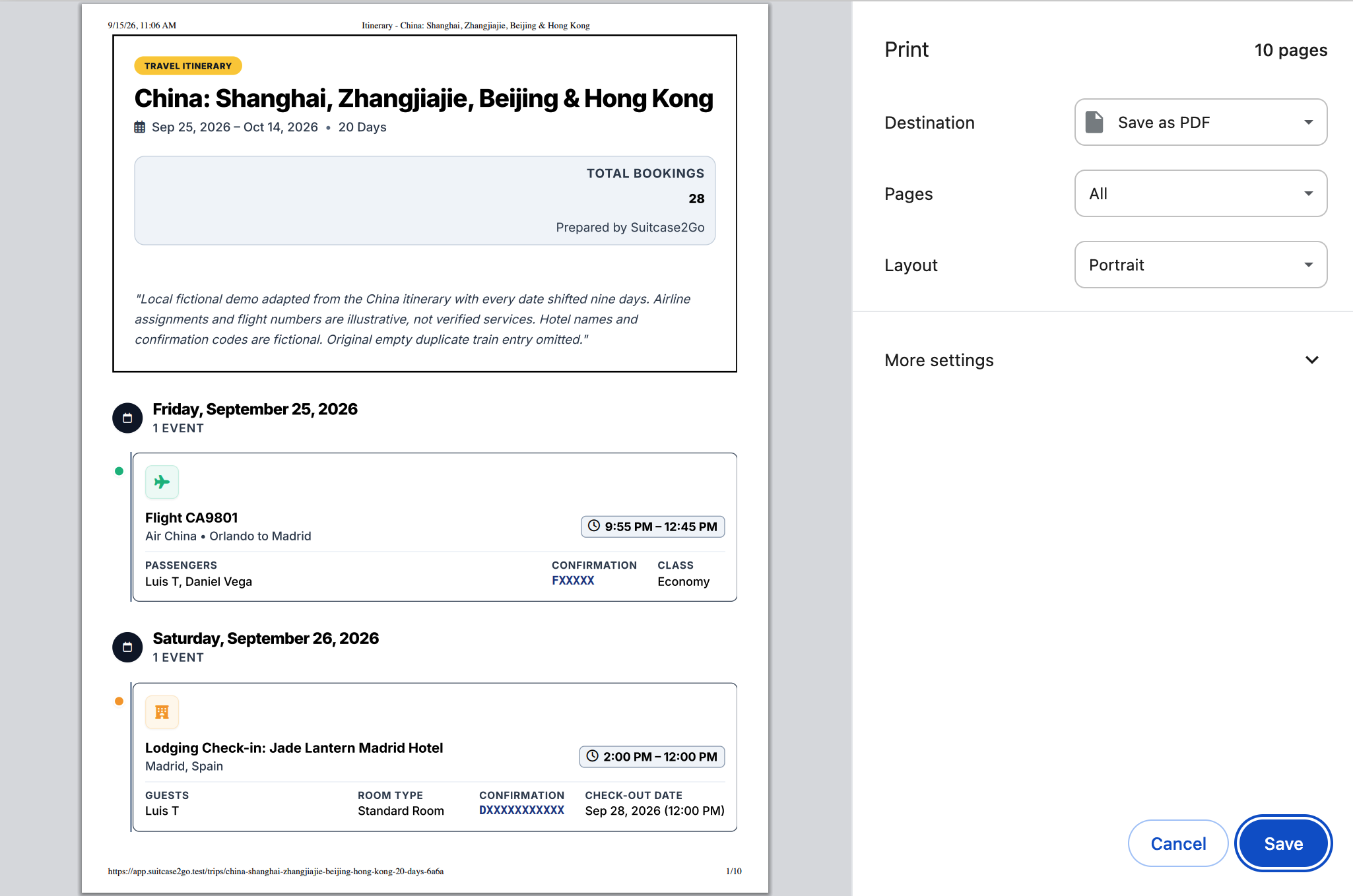
Safeguarding your accounts is only half of the pre-departure checklist; keeping your actual travel bookings accessible is the other. Even with robust 2FA fallbacks, spotty airport connectivity can make loading cloud confirmations stressful.
Using an intuitive planning workspace like Suitcase2Go helps you organize your flights, accommodation details, and daily activities in one unified view before you board. Rather than fumbling through multiple protected provider apps at check-in desks, you can consolidate your trip logistics in advance.
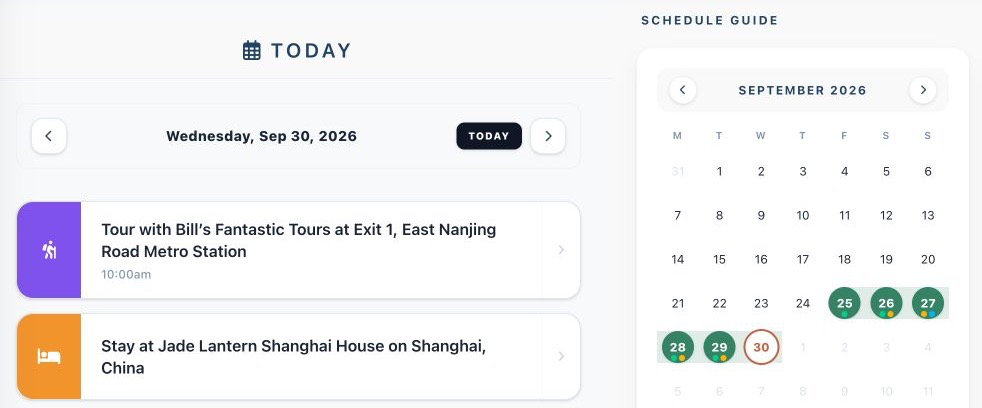
By taking thirty minutes before your trip to print your single-use recovery codes, verify your authenticator apps, and organize your itinerary documents, you ensure that unexpected SIM card switches or network dead zones never derail your journey.